
WordPress is not a “set it and forget it” platform. The core software, your theme and every plugin receive updates. Databases collect clutter. Backups fail quietly. Forms stop sending email after a plugin update, and nobody notices until a customer complains.
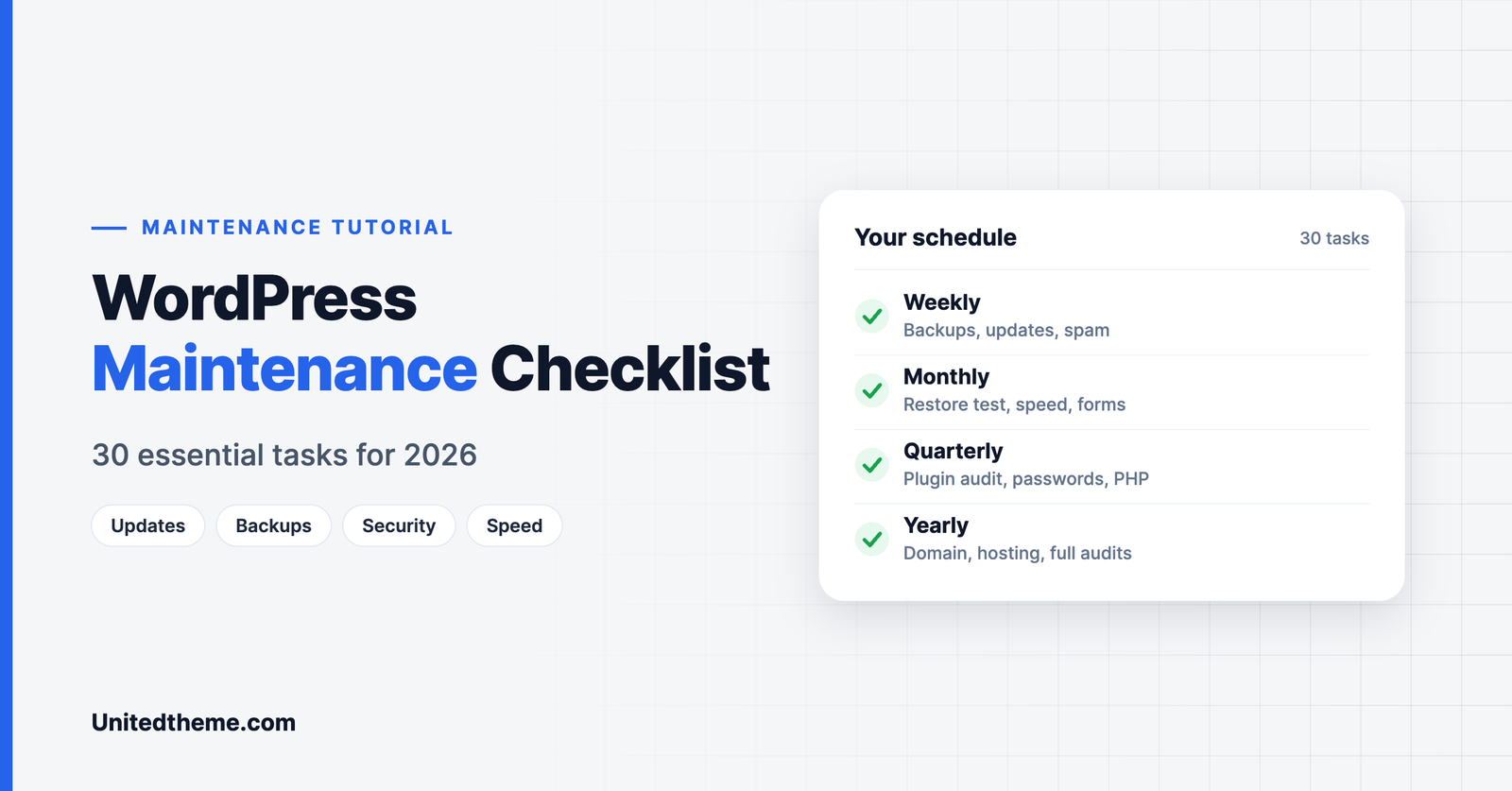
Regular maintenance prevents almost all of this, and it does not take long if you know what to check. This WordPress maintenance checklist breaks the work into weekly, monthly, quarterly and yearly tasks, with a short explanation of why each one matters.
Why WordPress Maintenance Matters
- Security. Most hacked WordPress sites are compromised through outdated plugins, themes or weak passwords. Updates close those gaps.
- Speed. Sites slow down over time as databases grow and unused plugins pile up.
- Reliability. Small problems, such as a broken form or an expired SSL certificate, cost real enquiries and sales.
- SEO. Search engines favor fast, secure, error-free sites.
- Lower costs. Preventing a problem is far cheaper than recovering from one.
Before You Start: The Golden Rules
- Always back up before you update. Confirm the backup completed.
- Update on a staging site first if your site earns money or receives heavy traffic.
- Update one thing at a time where possible, so you know what caused a problem.
- Check the site after every change, particularly the homepage, a post, the contact form and checkout if you have one.
Weekly WordPress Maintenance Tasks
| Task | Why it matters |
|---|---|
| Check that backups ran | A backup you never verified may not exist |
| Apply plugin and theme updates | Security fixes arrive in updates |
| Apply WordPress minor updates | These are mostly security and bug fixes |
| Moderate comments and clear spam | Keeps the database lean and the site tidy |
| Visit the site as a visitor | Catches obvious breakage quickly |
| Review security alerts | Spot blocked attacks or file changes early |
How to do it
- Go to Dashboard → Updates and review what is available.
- Read the changelog for major plugin updates before applying them.
- Open the site in a private browser window and click through your key pages.
Monthly WordPress Maintenance Tasks

| Task | Why it matters |
|---|---|
| Test a backup restore | Proves your backups actually work |
| Run a speed test | Reveals slowdowns before visitors feel them |
| Check for broken links | Broken links frustrate readers and waste crawl budget |
| Test every form | Forms fail silently more often than anything else |
| Review Google Search Console | Shows indexing errors and security issues |
| Optimize the database | Removes revisions, transients and spam |
| Review user accounts | Remove people who no longer need access |
| Check uptime reports | Reveals hosting problems |
How to do it
- Speed: test your homepage and one article. If server response is slow, see our guide to reducing TTFB in WordPress.
- Forms: submit each form yourself and confirm the email arrives.
- Search Console: open the Pages report and look for new errors.
- Disk space: check your hosting usage. If you are close to the limit, read how to free disk space and reduce inode usage.
Quarterly WordPress Maintenance Tasks

| Task | Why it matters |
|---|---|
| Audit your plugins | Unused plugins add risk and weight |
| Remove unused themes | Keep only the active theme and one default theme |
| Change key passwords | Limits damage from leaked credentials |
| Review PHP version | Supported versions are faster and safer |
| Check analytics trends | Shows which content deserves more attention |
| Update old content | Fresh, accurate content performs better in search |
| Test on real devices | Layout problems appear after updates |
| Review image sizes | Large images are the most common cause of slow pages |
How to do it
- Plugins: for each plugin, ask whether you still use it and when it was last updated. Delete, do not just deactivate, what you no longer need.
- PHP: check your version under Tools → Site Health. To change PHP settings, see where php.ini is in WordPress.
- Images: convert heavy images to modern formats. See WebP vs PNG vs JPEG.
- Analytics: our guide to using Google Analytics 4 to grow a WordPress blog shows which reports to read.
Yearly WordPress Maintenance Tasks
| Task | Why it matters |
|---|---|
| Renew domain and SSL certificate | An expired domain takes the whole site offline |
| Review your hosting plan | Your needs change as traffic grows |
| Full security audit | A deep check beyond routine scans |
| Full content audit | Merge, update or remove weak pages |
| Review legal pages | Privacy and cookie rules change |
| Evaluate your theme | Confirm it is still maintained and fits your goals |
| Review your backup strategy | Make sure copies are stored off the server |
| Accessibility check | Keeps the site usable for everyone |
WordPress Maintenance Tools You Will Need
You do not need many tools, and most have capable free versions. Choose one from each group and avoid installing several that do the same job.
| Job | What to look for |
|---|---|
| Backups | Automatic daily backups stored off the server, with one-click restore |
| Security | A firewall, malware scanning and login protection |
| Caching and speed | Page caching, and ideally image and file optimization |
| Uptime monitoring | Alerts by email or text when the site goes down |
| Broken link checking | A scan you can run monthly, not one that runs constantly |
| Database cleanup | Removal of old revisions, spam and expired transients |
| Staging | A copy of the site for testing, often provided by your host |
| Activity log | A record of who changed what, useful on sites with several users |
Many hosting companies include backups, caching and staging in their plans. Check what you already have before adding plugins.
How to Update WordPress Safely
Updates cause most maintenance anxiety, so here is a process that keeps risk low.
- Take a full backup of files and database, and confirm that it finished.
- Read what is changing. Check the changelog for major plugin and theme updates, and look for notes about breaking changes.
- Test on staging if the site is important to your business.
- Update plugins first, one at a time, checking the site after each.
- Update your theme. If you have edited theme files directly, use a child theme so your changes are not overwritten.
- Update WordPress core last.
- Clear all caches.
- Test the key journeys: homepage, a post, search, forms, login and checkout.
- Keep the backup for at least a few days in case a problem appears later.
If an update breaks the site, restore the backup first, then investigate on staging.
Signs Your Site Needs Attention Now
Do not wait for the next scheduled check if you notice any of these:
- The site has become noticeably slower.
- Visitors report errors or pages that will not load.
- You see unfamiliar users, posts or files.
- Search results for your site show strange text or warnings.
- Forms have stopped delivering email.
- Your host warns you about disk space, resource limits or malware.
- The dashboard shows many pending updates.
- The Site Health screen reports critical issues.
Several of these can indicate a security problem. Act quickly: change passwords, scan the site and restore a clean backup if necessary.
What to Do When Something Breaks

Even well-maintained sites have bad days. A calm routine helps.
- Do not panic and do not make several changes at once.
- Note what changed recently. Most problems follow an update, a new plugin or a settings change.
- Check whether the problem affects the whole site or one page.
- Deactivate the most recently updated plugin and test again.
- Switch temporarily to a default theme to rule out the theme.
- Look at the error log provided by your host.
- Restore the latest backup if you cannot find the cause quickly.
- Ask for help from your host or developer with the details you have gathered.
Problems with PHP limits, such as memory or upload size, are common. Our guide on where php.ini is in WordPress shows how to adjust them.
Maintenance for Different Types of Sites
Not every site needs the same level of care.
Blogs and brochure sites can follow the weekly and monthly lists in this checklist with little extra effort.
Online stores need more. Test the checkout after every update, monitor payment and shipping integrations, and take backups more often, since orders arrive constantly.
Membership and course sites should test login, registration and access rules after updates, because a fault can lock out paying customers.
News and magazine sites publish frequently and attract traffic spikes, so caching, image optimization and uptime monitoring deserve extra attention.
Multi-author sites should review user roles regularly and keep an activity log.
Common WordPress Maintenance Mistakes
- Updating without a backup. It works until the one time it does not.
- Enabling automatic updates for everything on a business-critical site without any testing or monitoring.
- Deactivating plugins and leaving them installed. Inactive plugins can still contain vulnerabilities. Delete what you do not use.
- Keeping backups only on the same server as the site. If the server fails, you lose both.
- Never testing a restore. A backup is only useful if it can be restored.
- Using the same password everywhere, or sharing one admin account between several people.
- Ignoring the Site Health screen under Tools, which flags many issues for you.
- Treating maintenance as a once-a-year job. Small, regular checks prevent large, expensive problems.
How Long Should Each Session Take?
A realistic schedule for a small to medium site looks like this:
| Session | Time needed | Main focus |
|---|---|---|
| Weekly | 15 to 20 minutes | Backups, updates, quick visual check |
| Monthly | About one hour | Restore test, speed, forms, Search Console |
| Quarterly | Two to three hours | Plugin audit, passwords, content updates |
| Yearly | Half a day | Renewals, full audits, strategy review |
Put the sessions in your calendar as recurring appointments. Maintenance that depends on memory tends not to happen.
Printable WordPress Maintenance Checklist
Weekly
- Confirm backups completed
- Update plugins, themes and WordPress minor versions
- Clear spam comments
- Browse the site as a visitor
- Review security alerts
Monthly
- Test a backup restore
- Run a speed test
- Fix broken links
- Test all forms
- Review Search Console
- Optimize the database
- Review user accounts
Quarterly
- Audit and remove unused plugins and themes
- Change key passwords
- Check PHP version
- Update old content
- Test on phones and tablets
Yearly
- Renew domain and SSL
- Review hosting
- Run full security and content audits
- Review legal pages and backup strategy
Should You Do It Yourself or Hire Someone?

Doing it yourself costs nothing but time, typically an hour or two a month for a small site. It makes sense when the site is simple and you are comfortable fixing things if an update goes wrong.
Hiring help makes sense when:
- The site generates leads or revenue, so downtime is expensive.
- You run an online store, membership site or busy publication.
- You do not have the time or do not want the responsibility.
- You want someone on call when something breaks.
Unitedtheme’s WordPress retainers cover tested updates, backups, security monitoring, performance care and reserved hours for improvements. To understand what such a service should cost, read our guide to WordPress retainer pricing.
Frequently Asked Questions
How often should I update WordPress plugins?
Weekly is a good rhythm. Apply security updates as soon as you can, after taking a backup.
How long does WordPress maintenance take?
For a small site, about fifteen minutes a week and an hour a month. Larger and more complex sites need more.
What happens if I do not maintain my WordPress site?
Outdated software becomes a security risk, the site slows down and small faults go unnoticed. Recovery from a hack or a failed update costs far more than routine care.
Can I automate WordPress maintenance?
Partly. Backups, uptime monitoring and many updates can be automated. Someone still needs to check that the site works afterwards.
Do I need a staging site?
For business-critical sites, yes. Testing updates on a copy first prevents visitors from seeing problems.
Final Thoughts
Good WordPress maintenance is a habit, not a project. Put the weekly and monthly tasks in your calendar, work through the checklist and your site will stay fast, secure and dependable. If you would rather hand it over, our WordPress retainer plans take care of all of it.
Leave a Reply