
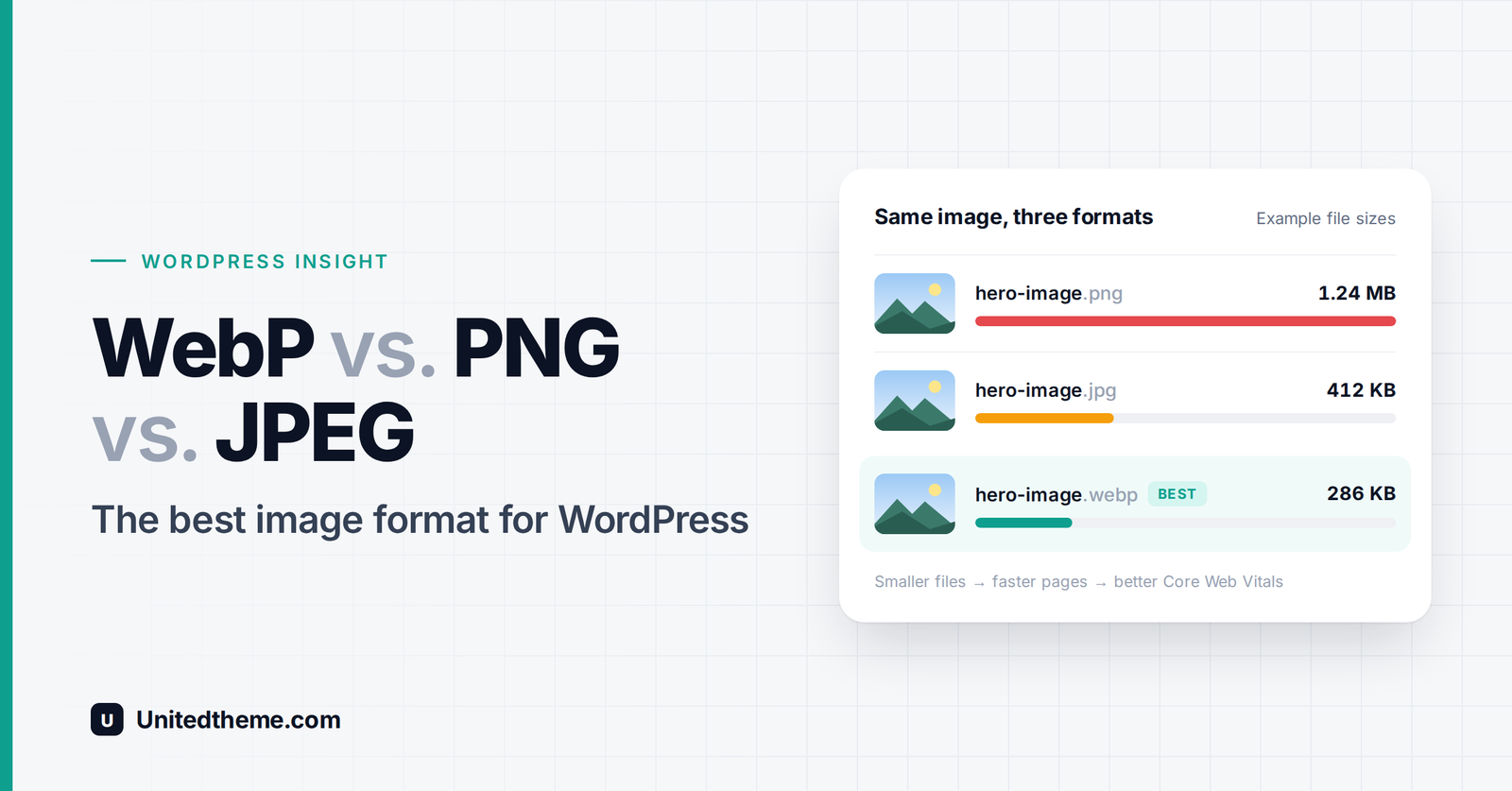
Here’s a statistic that surprises many site owners: on most web pages, images make up more bytes than any other resource — more than your theme’s code, your fonts or your scripts. That means the image format you choose is one of the biggest levers you have for making your WordPress site faster.
Yet most of us never think twice about it. We take a photo, export a screenshot or download a graphic, and upload whatever format it happens to be in. The result? Bloated pages, slow load times, poor Core Web Vitals scores and visitors who leave before your content even appears.
In this insight article, we’ll break down the three most common image formats on the web — WebP, PNG and JPEG — compare them side by side, look at the newer AVIF format, and give you a simple, practical rulebook for choosing the right format for every image on your WordPress site.
In this article:
- Why image format matters for WordPress speed and SEO
- How lossy and lossless compression work (in plain English)
- JPEG explained: strengths, weaknesses and best uses
- PNG explained: strengths, weaknesses and best uses
- WebP explained: why it’s the modern default
- What about AVIF, SVG and GIF?
- Head-to-head comparison table
- Which format to use for each type of image
- How to use WebP in WordPress (with and without plugins)
- Image optimization best practices beyond format
Why Your Image Format Matters
Choosing the right format isn’t just a technical detail. It affects your site in four important ways:
1. Page speed. Smaller image files download faster, especially on mobile networks. A page that loads in two seconds instead of five keeps far more visitors around.
2. Core Web Vitals and SEO. Google uses Core Web Vitals as part of its page experience signals. The most relevant metric here is Largest Contentful Paint (LCP) — the time it takes for the biggest visible element to load. On most pages, that element is an image: a hero banner, featured image or product photo. A lighter image format directly improves LCP.
3. Hosting and bandwidth costs. Every image is served over and over to every visitor. Cutting image weight by a third can significantly reduce bandwidth use, which matters if your host or CDN charges by usage.
4. Visual quality and brand perception. The wrong format can make logos look blurry, text look fuzzy or photos look blotchy. The right format keeps images crisp while staying lightweight.
Lossy vs. Lossless Compression: A Quick Primer
Before comparing formats, it helps to understand the two ways images are compressed.
Lossy compression permanently removes some image data that the human eye is unlikely to notice. Think of it like summarizing a long book: you lose some detail, but the story still comes through. The trade-off is a much smaller file. If you compress too aggressively, you’ll see artifacts — blocky patches, smudged edges or color banding.
Lossless compression shrinks the file without throwing away any data. Like zipping a document, the original can be perfectly restored. Quality is identical, but files are larger than lossy versions.
| Lossy | Lossless | |
|---|---|---|
| File size | Small | Larger |
| Quality | Slight, often invisible loss | Pixel-perfect |
| Best for | Photos and complex images | Graphics, text, logos, screenshots |
| Formats | JPEG, WebP (lossy), AVIF | PNG, WebP (lossless), AVIF (lossless) |
Notice that WebP and AVIF support both. That flexibility is a big part of why they’ve become so popular.
JPEG: The Reliable Workhorse
JPEG (also written JPG) has been the standard format for photographs on the web since the early 1990s. If you’ve taken a photo with a camera or smartphone, you’ve almost certainly created a JPEG.
How JPEG Works
JPEG uses lossy compression designed around how human vision works. It keeps brightness detail (which our eyes are sensitive to) and discards some color detail (which we notice less). You can choose a quality level when exporting — typically from 0 to 100 — to balance size against quality.
JPEG Pros
- Universal compatibility. Every browser, device, email client and app can open a JPEG.
- Great for photos. Handles millions of colors and smooth gradients well.
- Adjustable compression. You control the size-versus-quality trade-off.
- Small files compared to PNG for photographic images.
JPEG Cons
- No transparency. JPEGs always have a solid background.
- Artifacts on sharp edges. Text, logos, icons and line art often look fuzzy or “noisy” around edges.
- Quality degrades with re-saving. Every time you edit and re-save a JPEG, it loses a little more quality.
- Larger than WebP at similar visual quality.
Best Uses for JPEG
Photographs, blog featured images with photographic content, product photos, and any situation where maximum compatibility matters more than the smallest possible file size (for example, images you’ll also share by email or download).
PNG: The Precision Specialist
PNG (Portable Network Graphics) was created in the mid-1990s as an improved, patent-free alternative to GIF. It’s the go-to format when quality and transparency matter more than file size.
How PNG Works
PNG uses lossless compression, so every pixel is preserved exactly. It comes in two main flavors: PNG-8 (up to 256 colors, smaller files) and PNG-24/32 (millions of colors, with PNG-32 including full alpha transparency).
PNG Pros
- Lossless quality. Perfect for images where every pixel counts.
- Full transparency. Supports smooth, partially transparent edges (alpha channel), ideal for logos placed on different backgrounds.
- Crisp text and edges. Screenshots, diagrams and UI elements look sharp.
- Universal compatibility. Supported everywhere.
- No quality loss from re-saving.
PNG Cons
- Very large files for photos. A photograph saved as PNG can easily be several times larger than the same photo as a JPEG — one of the most common causes of slow WordPress sites.
- Larger than lossless WebP for the same image.
Best Uses for PNG
Logos and icons (when SVG isn’t an option), screenshots, images with text, charts and diagrams, illustrations with flat colors, and any graphic that needs a transparent background.
Common mistake: Uploading photographs as PNG files. If your blog photos are PNGs, converting them to JPEG or WebP can shrink them dramatically with no visible difference.
WebP: The Modern All-Rounder
WebP is an image format developed by Google and released in 2010. It was designed specifically for the web, with one goal: deliver the same visual quality as JPEG and PNG at a noticeably smaller file size.
How WebP Works
WebP can use both lossy and lossless compression, supports transparency in both modes, and even supports animation (as a lighter alternative to GIF). In other words, it can replace JPEG, PNG and GIF in most situations.
How Much Smaller Is WebP?
According to Google’s own research published on the WebP developer site:
- Lossless WebP images are about 26% smaller than PNGs.
- Lossy WebP images are about 25–34% smaller than comparable JPEGs at equivalent visual quality.
Real-world results vary depending on the image and compression settings, but savings in this range are common. Across an entire site with dozens of images per page, that adds up to a big performance gain.
WebP Pros
- Smaller files than both JPEG and PNG at similar quality.
- Lossy and lossless modes in one format.
- Transparency support, even with lossy compression — something JPEG can’t do and PNG can only do at a large file size.
- Animation support with much smaller files than GIF.
- Excellent browser support. All major modern browsers — Chrome, Firefox, Edge, Safari and Opera — support WebP. Safari added support in version 14 (2020), so the only browsers without it today are very old ones.
- Native WordPress support since WordPress 5.8.
WebP Cons
- Less support outside browsers. Some older desktop image editors, email clients and social platforms handle WebP poorly, which matters for images people download or share.
- Lossy WebP can blur fine detail at aggressive compression levels, so test your quality settings.
- Encoding is slightly slower than JPEG, though this only affects image generation, not your visitors.
Best Uses for WebP
Almost everything displayed on your website: photos, featured images, product images, banners, illustrations, graphics with transparency and simple animations.
What About AVIF, SVG and GIF?
JPEG, PNG and WebP aren’t the only options. Here’s where the other common formats fit.
AVIF: The Next Step Up
AVIF is based on the AV1 video codec and often compresses images even further than WebP — particularly photos — while preserving excellent quality. It supports transparency, HDR and wide color.
WordPress has supported AVIF uploads since version 6.5, and all major modern browsers now support it. The trade-offs: AVIF files take longer to encode, support in image editors and other tools is still catching up, and some hosts’ server image libraries can’t process AVIF yet. For many sites, WebP remains the safest everyday choice, with AVIF as an optional upgrade for photo-heavy sites.
SVG: The Best Choice for Logos and Icons
SVG (Scalable Vector Graphics) isn’t a pixel-based format at all — it describes shapes with code. That means SVGs stay perfectly sharp at any size and are often tiny in file size. They’re ideal for logos, icons and simple illustrations.
WordPress doesn’t allow SVG uploads by default because SVG files can contain code that poses a security risk. If you need SVGs, use a trusted plugin such as Safe SVG, which sanitizes files on upload, and only upload SVGs from sources you trust.
GIF: Retire It Where You Can
GIF is limited to 256 colors and produces very large files for animations. For animated content, consider animated WebP or, better still, a short MP4/WebM video set to autoplay and loop silently, which is usually far lighter.
Head-to-Head Comparison: WebP vs. PNG vs. JPEG
| Feature | JPEG | PNG | WebP |
|---|---|---|---|
| Compression type | Lossy | Lossless | Lossy and lossless |
| Typical file size | Small (photos) | Large | Smallest of the three |
| Photo quality | Very good | Excellent, but heavy | Very good |
| Text and sharp edges | Can look fuzzy | Excellent | Very good (lossless mode excellent) |
| Transparency | ❌ No | ✅ Yes | ✅ Yes |
| Animation | ❌ No | ❌ No (APNG has limited use) | ✅ Yes |
| Browser support | Universal | Universal | All modern browsers |
| Support outside browsers | Universal | Universal | Good, but not universal |
| WordPress support | ✅ Native | ✅ Native | ✅ Native (since 5.8) |
| Best for | Photos needing maximum compatibility | Screenshots, logos, graphics with text | Nearly all website images |
The Verdict
For images displayed on your WordPress website, WebP is the best all-round format. It delivers smaller files than JPEG and PNG, supports transparency and animation, and works in every modern browser.
That doesn’t make JPEG and PNG obsolete. They’re still useful as source files and for images people will download, print or share outside the browser.
Which Format Should You Use? A Practical Rulebook
| Image type | Best format | Good fallback |
|---|---|---|
| Blog photos and featured images | WebP (lossy) | JPEG |
| WooCommerce product photos | WebP (lossy) | JPEG |
| Hero banners and sliders | WebP or AVIF | JPEG |
| Logos | SVG | WebP or PNG (transparent) |
| Icons | SVG | WebP or PNG |
| Screenshots and tutorials | WebP (lossless) | PNG |
| Charts, diagrams and infographics | SVG or WebP (lossless) | PNG |
| Images with transparent backgrounds | WebP | PNG |
| Short animations | MP4/WebM video or animated WebP | GIF |
| Downloadable images (press kits, printables) | JPEG or PNG | — |
A simple rule of thumb: If it’s a photo, use lossy WebP. If it has text, sharp lines or transparency, use lossless WebP or PNG. If it’s a logo or icon, use SVG.
How to Use WebP Images in WordPress
You have several ways to start serving WebP on your WordPress site.
Option 1: Upload WebP Files Directly
Since WordPress 5.8, you can upload WebP images to the Media Library just like JPEGs and PNGs. Convert images before uploading using:
- Squoosh (squoosh.app), Google’s free browser-based image compressor
- Photoshop, which supports WebP export natively in recent versions
- GIMP or Affinity Photo
- Command-line tools like Google’s
cwebp
This works well for new content, but it’s manual. Note that WordPress needs your server’s image library (GD or Imagick) to support WebP in order to generate thumbnail sizes. You can check this under Tools → Site Health → Info → Media Handling.
Option 2: Use the Modern Image Formats Plugin (Free, by the WordPress Performance Team)
The WordPress Performance Team maintains a free plugin called Modern Image Formats (available on its own or through the Performance Lab plugin). Once activated, it automatically generates WebP (or AVIF) versions of new JPEG and PNG uploads, and WordPress serves the modern version on the front end.
- Go to Plugins → Add New Plugin and search for “Modern Image Formats.”
- Install and activate it.
- Go to Settings → Media to choose your preferred output format (WebP or AVIF, if your server supports it).
Option 3: Use an Image Optimization Plugin
Image optimization plugins compress your images and convert them to WebP — including images already in your Media Library. Popular options include:
- EWWW Image Optimizer
- ShortPixel Image Optimizer
- Imagify
- Smush
- Optimole (which also serves images through a CDN)
Most offer bulk conversion of existing images and automatic conversion of new uploads. Free and paid features vary by plugin, so check each plugin’s current plan details.
Option 4: Use a CDN With Automatic Format Conversion
Some CDNs and hosting providers can automatically detect each visitor’s browser and serve WebP or AVIF on the fly, without changing the files in your Media Library. Examples include Cloudflare’s image optimization features, Jetpack’s Site Accelerator, and image CDNs like Bunny Optimizer. Many managed WordPress hosts offer similar built-in tools.
Tip: Always back up your site before running a bulk image conversion, and spot-check a few images afterward to make sure quality looks good.
Image Optimization Best Practices (Beyond Format)
Choosing WebP is a great start, but format is only one piece of the image performance puzzle.
1. Resize before you upload. A 6000-pixel-wide photo straight from your camera is far bigger than any screen needs. Resize images to the largest size they’ll actually be displayed at — for most blog content, 1200 to 2000 pixels wide is plenty. (WordPress automatically scales down images larger than 2560 pixels, but uploading the right size from the start is better.)
2. Compress smartly. For lossy WebP and JPEG, a quality setting of roughly 75–85 usually offers the best balance between size and appearance. Always check results visually.
3. Keep lazy loading on — except for your hero image. WordPress lazy-loads images by default, so images below the fold load only when needed. However, your main above-the-fold image (often the LCP element) should load immediately. Recent WordPress versions handle this automatically in most themes, but some page builders and sliders override it.
4. Use responsive images. WordPress automatically creates multiple image sizes and uses the srcset attribute so phones download smaller versions than desktops. Avoid plugins or themes that disable this.
5. Always set width and height. Specifying image dimensions prevents layout shift as images load, which improves another Core Web Vital: Cumulative Layout Shift (CLS).
6. Write descriptive file names and alt text. blue-linen-summer-dress.webp with good alt text helps both accessibility and image SEO far more than IMG_4821.webp.
7. Use a CDN. A content delivery network serves your images from servers close to each visitor, cutting load times worldwide.
8. Measure your results. Test your pages with Google PageSpeed Insights before and after optimizing. Look for recommendations like “Serve images in next-gen formats” and “Properly size images,” and watch your LCP improve.
Frequently Asked Questions
Is WebP better than JPEG for WordPress?
For images displayed on your website, yes. WebP typically produces files 25–34% smaller than JPEG at similar visual quality, which makes pages load faster. JPEG is still useful for images people download or share outside the browser.
Is WebP better than PNG?
In most cases, yes. Lossless WebP is about 26% smaller than PNG and also supports transparency. PNG remains a safe choice for maximum compatibility, such as images that will be edited in older software.
Does WebP affect SEO?
Not directly — Google doesn’t rank images higher just because they’re WebP. But WebP makes pages load faster, which improves Core Web Vitals and user experience, and both of those support better SEO. Google Images can index WebP images normally.
Will WebP images work in all browsers?
WebP works in all current versions of Chrome, Firefox, Safari, Edge and Opera. Only very old browsers lack support. Most WordPress optimization plugins can serve JPEG or PNG fallbacks to those browsers automatically.
Should I convert all my existing images to WebP?
For most sites, converting existing images with an optimization plugin is worth it — especially if your Media Library contains large PNG photos. Back up your site first, and keep the original files if your plugin offers that option.
Should I use AVIF instead of WebP?
AVIF can produce even smaller files, especially for photos, and WordPress supports it since version 6.5. However, it takes longer to encode, and not every server or tool supports it yet. WebP is the safer default today; AVIF is a great upgrade if your host and tools support it.
Why can’t I upload WebP images to WordPress?
You’re likely running a WordPress version older than 5.8, or your server’s image library doesn’t support WebP. Update WordPress, then check Tools → Site Health → Info → Media Handling. If WebP isn’t listed, ask your host to enable WebP support in GD or Imagick.
Recommended Video Tutorials
Want to see image formats and optimization in action? These channels publish reliable, practical tutorials:
- Google Chrome for Developers – Official videos on image performance, modern formats and Core Web Vitals. youtube.com/@ChromeforDevelopers
- WPBeginner – Beginner-friendly WordPress tutorials, including image optimization and WebP plugins. youtube.com/@wpbeginner
- WordPress (official channel) – Guides to WordPress features, the Media Library and performance. youtube.com/@WordPress
- Google Search Central – Official advice on page experience, Core Web Vitals and image SEO. youtube.com/@GoogleSearchCentral
Quick video searches:
- WebP vs PNG vs JPEG explained
- How to convert images to WebP in WordPress
- WordPress image optimization for page speed
- Improve Largest Contentful Paint (LCP) WordPress
Editor’s tip: To embed a video, paste the YouTube video URL on its own line in the WordPress block editor — it will automatically turn into an embedded player.
Conclusion
So, what’s the best image format for WordPress? For the vast majority of images on your site, the answer is WebP. It combines the strengths of JPEG and PNG — small files, high quality, transparency and even animation — and works in every modern browser.
Here’s the quick summary:
- WebP – Your default for photos, graphics and almost everything displayed on your site.
- JPEG – A reliable fallback for photos, and the best choice for images people download or share.
- PNG – Best for screenshots, text-heavy graphics and transparency when you need maximum compatibility.
- SVG – The top choice for logos and icons.
- AVIF – A powerful next-generation option for photo-heavy sites when your server and tools support it.
Combine the right format with proper resizing, smart compression, lazy loading and a CDN, and you’ll have a WordPress site that looks great and loads fast — for visitors and for Google.
Looking for a lightweight, performance-optimized WordPress theme? Explore the fast, modern themes at Unitedtheme.com and give your site a speedy foundation.
Want a Faster WordPress Site Without the Technical Headache? Let Our Developers Help
Optimizing images is one of the quickest wins for site speed, but a truly fast WordPress site depends on much more — clean code, efficient themes, smart caching and a well-configured server. At Unitedtheme, we offer professional WordPress development services that put performance first, from converting and optimizing your entire media library and fixing Core Web Vitals issues to building custom, lightweight themes and features tailored to your business. Our developers handle the technical heavy lifting so your site loads quickly, looks sharp on every device and delivers a better experience for visitors and search engines alike. If you’d rather focus on running your business than tweaking settings, hire Unitedtheme’s expert WordPress developers and get a site that’s built for speed.


Leave a Reply