
You can write excellent content and still struggle to rank if search engines cannot crawl, understand or trust your site. That is the job of technical SEO: making sure nothing in the way your site is built holds your content back.
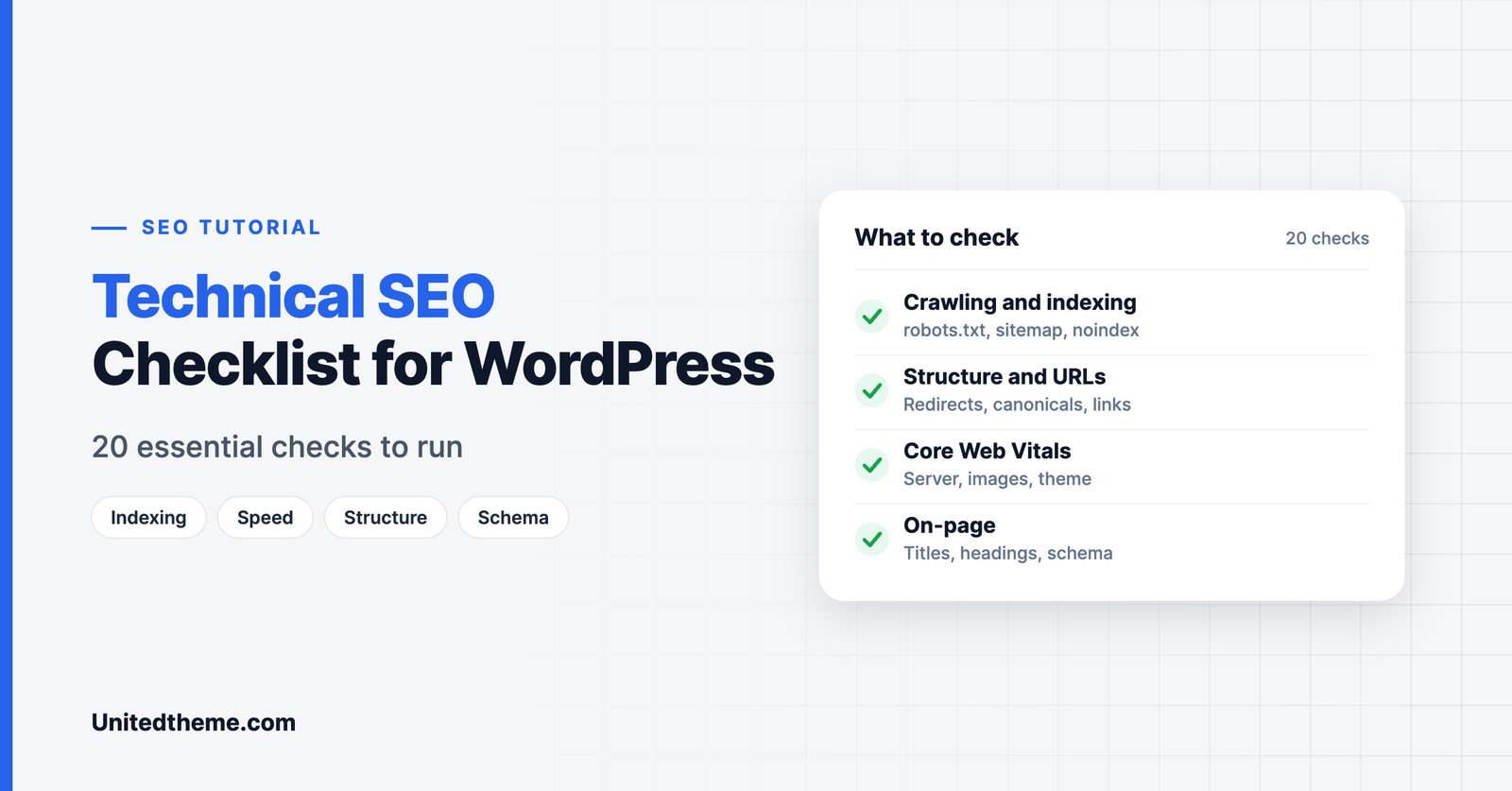
The good news is that WordPress handles many basics well, and most technical problems come from a short list of common mistakes. This technical SEO checklist for WordPress covers 20 checks in five groups. Work through it once, fix what you find, then repeat it every few months.
How to Use This Checklist
You need three free tools:
- Google Search Console to see how Google crawls and indexes your site.
- An SEO plugin such as Rank Math, Yoast SEO or All in One SEO for sitemaps, meta tags and schema.
- PageSpeed Insights to measure performance.
Tackle the groups in order. Crawling and indexing come first, because nothing else matters if Google cannot reach your pages.
Part 1: Crawling and Indexing
1. Make sure search engines are allowed to index the site
Go to Settings → Reading and confirm that “Discourage search engines from indexing this site” is unchecked. This box is often ticked during development and forgotten at launch.
2. Review your robots.txt file
Open yourdomain.com/robots.txt. It should not block important content, CSS or JavaScript. It should also include a line pointing to your sitemap, for example “Sitemap: https://yourdomain.com/sitemap_index.xml”.
3. Submit an XML sitemap
Your SEO plugin creates a sitemap automatically. Submit it in Search Console under Sitemaps, and check that it contains only pages you want indexed.
4. Check the Page indexing report
In Search Console, open Indexing → Pages. Look at why pages are not indexed. A few exclusions are normal. Large numbers under “Crawled – currently not indexed” suggest thin or duplicate content.
5. Keep demo, staging and test content out of Google
This is one of the most common problems we find in audits. Staging copies, theme demo installations and test pages get indexed and compete with your real content. Set them to noindex, protect them with a password or block them in robots.txt.
6. Noindex low-value pages
Internal search results, thin tag archives, login pages and thank-you pages rarely deserve a place in search results. Most SEO plugins let you set these to noindex.
Part 2: Site Structure and URLs
7. Use clean permalinks
Go to Settings → Permalinks and choose Post name. Short, descriptive URLs are easier for people and search engines to understand.
8. Fix broken links and 404 errors
Check the “Not found (404)” list in Search Console. Redirect URLs that once had content or links to the closest relevant page. Ignore random URLs that never existed.
9. Redirect properly when URLs change
Whenever you change a slug or delete a page, add a 301 redirect from the old address to the new one. Most SEO plugins include a redirection manager.
10. Set canonical URLs
Canonical tags tell search engines which version of a page is the main one. SEO plugins add them automatically. Spot-check a few pages to make sure each canonical points to itself, not to another page.
11. Build internal links
Every important page should be reachable within a few clicks of the homepage and linked from related articles. Pages with no internal links are hard for Google to find and value.
12. Use one version of your domain
Your site should load on one address only, with HTTPS, and either with or without “www”. All other versions should redirect to it. Check the WordPress Address and Site Address under Settings → General.
Part 3: Speed and Core Web Vitals

13. Measure Core Web Vitals
Test key pages in PageSpeed Insights. Focus on Largest Contentful Paint (loading), Interaction to Next Paint (responsiveness) and Cumulative Layout Shift (visual stability).
14. Improve server response time
A slow server delays everything else. Use quality hosting, page caching and a current PHP version. Our guide to reducing TTFB in WordPress covers the fixes in detail.
15. Optimize images
Resize images to the size they are displayed, compress them and use modern formats. See WebP vs PNG vs JPEG. Add width and height attributes so the layout does not jump as images load.
16. Use a lightweight theme and fewer plugins
Heavy themes and unnecessary plugins are a leading cause of slow WordPress sites. Choose a theme that loads only what each page needs. Our WordPress themes are built with conditional asset loading and clean markup for this reason.
Part 4: On-Page Technical Elements

17. Write unique titles and meta descriptions
Each page needs its own title of roughly 50 to 60 characters and a description of up to about 160 characters. Duplicates confuse search engines and waste clicks.
18. Use one H1 and a logical heading structure
Each page should have a single H1, followed by H2s for main sections and H3s for subsections. Do not choose headings for their size.
19. Add alt text to images
Alt text describes an image for screen readers and search engines. Describe what is in the image plainly, and include a keyword only where it fits naturally.
20. Add structured data
Schema markup helps search engines understand your content and can make pages eligible for rich results. SEO plugins add Article, Breadcrumb and Organization schema automatically. Test pages with Google’s Rich Results Test.
Part 5: Security and Mobile
These are part of the foundations, so confirm them as you finish:
- HTTPS everywhere. Your SSL certificate should be valid, and no page should load insecure resources.
- Mobile-friendly design. Google indexes the mobile version of your site. Test templates on a real phone.
- Up-to-date software. Outdated plugins lead to hacks, and hacked sites lose rankings. Follow our WordPress maintenance checklist.
How to Prioritize What You Find
After running the checks you will probably have a list of issues. Fix them in order of impact, not in the order you found them.
| Priority | Type of issue | Examples |
|---|---|---|
| 1. Critical | Anything that blocks indexing | Site set to noindex, important pages blocked in robots.txt, server errors |
| 2. High | Problems affecting many pages | Slow server response, missing sitemap, broken redirects after a URL change |
| 3. Medium | Quality and duplication issues | Duplicate titles, thin tag archives, indexed demo or staging content |
| 4. Low | Refinements | Missing alt text on older images, minor heading issues |
A single critical problem can outweigh everything else on the list, so always confirm that your key pages can be crawled and indexed before spending time on refinements.
A Monthly Search Console Routine
You do not need to repeat the full checklist every month. A fifteen-minute review of Google Search Console catches most new problems early.
- Open the Performance report. Compare clicks and impressions with the previous period. A sudden drop is a signal to investigate.
- Check the Pages report under Indexing. Look for new errors and for a rising number of pages that are not indexed.
- Review Core Web Vitals if your site has enough traffic to show data.
- Look at the Sitemaps report to confirm that your sitemap is being read without errors.
- Check Manual actions and Security issues. Both should be empty.
- Use URL Inspection on any important page that is not performing, to see how Google last crawled it.
- Note which queries bring impressions but few clicks. These pages may need a better title or description.
WordPress Settings That Affect Technical SEO
Several technical SEO problems come from WordPress settings that take seconds to change.
- Settings, Reading: search engine visibility. Must be unchecked on a live site.
- Settings, Permalinks. Use Post name. If you change this on an established site, set up redirects.
- Settings, General: site addresses. Both should use HTTPS and the same version of your domain.
- Settings, Discussion. Comment spam creates low-quality content and links. Use moderation and an anti-spam plugin.
- Settings, Media. WordPress creates several sizes of every image. Remove sizes you do not need to save space.
- Categories and tags. Avoid creating a tag for every post. Each tag creates an archive page that search engines may crawl.
- Attachment pages. Make sure media attachment pages redirect to the file or the parent post, since they offer little value on their own. Most SEO plugins handle this.
Technical SEO for Different Types of WordPress Sites
Blogs. Focus on clean category structure, internal links between related posts and controlling thin tag archives.
News and magazine sites. Speed and crawl efficiency matter most. Keep sitemaps current, make sure new articles are linked from the homepage and avoid indexing endless paginated archives.
Online stores. Product variations, filters and sorting options can create thousands of near-duplicate URLs. Use canonical tags and noindex rules to keep them under control, and add Product schema.
Business and service sites. Make sure every service and location has its own page, add LocalBusiness schema and keep contact details consistent.
Multilingual sites. Use hreflang tags so search engines show the right language version to each visitor. Translation plugins usually add these for you.
When to Get a Professional Audit
This checklist covers the checks most site owners can do themselves. A professional audit goes further, examining code quality, server configuration, security and accessibility alongside SEO. It is worth considering when traffic has dropped without an obvious cause, before or after a redesign or migration, or when your site has grown large and complex.
Quick Wins You Can Do Today
If you only have half an hour, these five checks deliver the most value for the least effort:
- Confirm the site is indexable under Settings, Reading.
- Open your robots.txt file and make sure nothing important is blocked and your sitemap is listed.
- Submit your sitemap in Google Search Console if you have not already.
- Search Google for site:yourdomain.com and scan the results for pages that should not be there, such as demo content, test pages or login screens.
- Run your homepage through PageSpeed Insights and note the largest opportunity it reports.
Each takes a few minutes, and together they catch the problems that most often hold WordPress sites back. Once they are done, work through the rest of the checklist at your own pace, and record what you changed and when, so that you can connect any movement in your rankings to the fix that caused it.
Recording What You Fix
Keep a simple log of every technical change, with the date, the page or setting affected and the reason. When rankings or traffic move, the log lets you connect the change to its cause. It also saves time if you work with a developer or agency later, because they can see what has already been tried.
Technical SEO Checklist Summary
| Area | Checks |
|---|---|
| Crawling and indexing | Indexing allowed, robots.txt, sitemap, indexing report, demo content, low-value pages |
| Structure and URLs | Permalinks, 404s, redirects, canonicals, internal links, single domain |
| Speed | Core Web Vitals, server response, images, theme and plugins |
| On-page | Titles and descriptions, headings, alt text, structured data |
| Foundations | HTTPS, mobile, updates |
Common Technical SEO Mistakes in WordPress
- Leaving “Discourage search engines” switched on after launch.
- Letting demo or staging sites get indexed.
- Changing URLs without redirects.
- Indexing hundreds of thin tag pages.
- Installing several plugins that do the same job.
- Ignoring Search Console until traffic drops.
Frequently Asked Questions
What is technical SEO?
Technical SEO is the work of making a website easy for search engines to crawl, index and understand. It covers site speed, structure, indexing, security and structured data.
How often should I run a technical SEO audit?
Run a full check every three to six months, and a quick review of Search Console monthly.
Do I need a plugin for technical SEO in WordPress?
An SEO plugin is strongly recommended. It handles sitemaps, canonical tags, schema and redirects that would otherwise require code.
Can a theme affect SEO?
Yes. A theme controls your HTML structure, heading hierarchy, mobile layout and much of your page speed.
What is the most important technical SEO factor?
Indexability. If your pages cannot be crawled and indexed, nothing else counts.
Final Thoughts
Technical SEO is mostly about removing obstacles. Work through these 20 checks, fix the issues in order and your content will have a clear path to ranking. If you would like an expert review, Unitedtheme’s WordPress audit service examines performance, security, code quality and SEO, and gives you a prioritized action plan.

Leave a Reply