
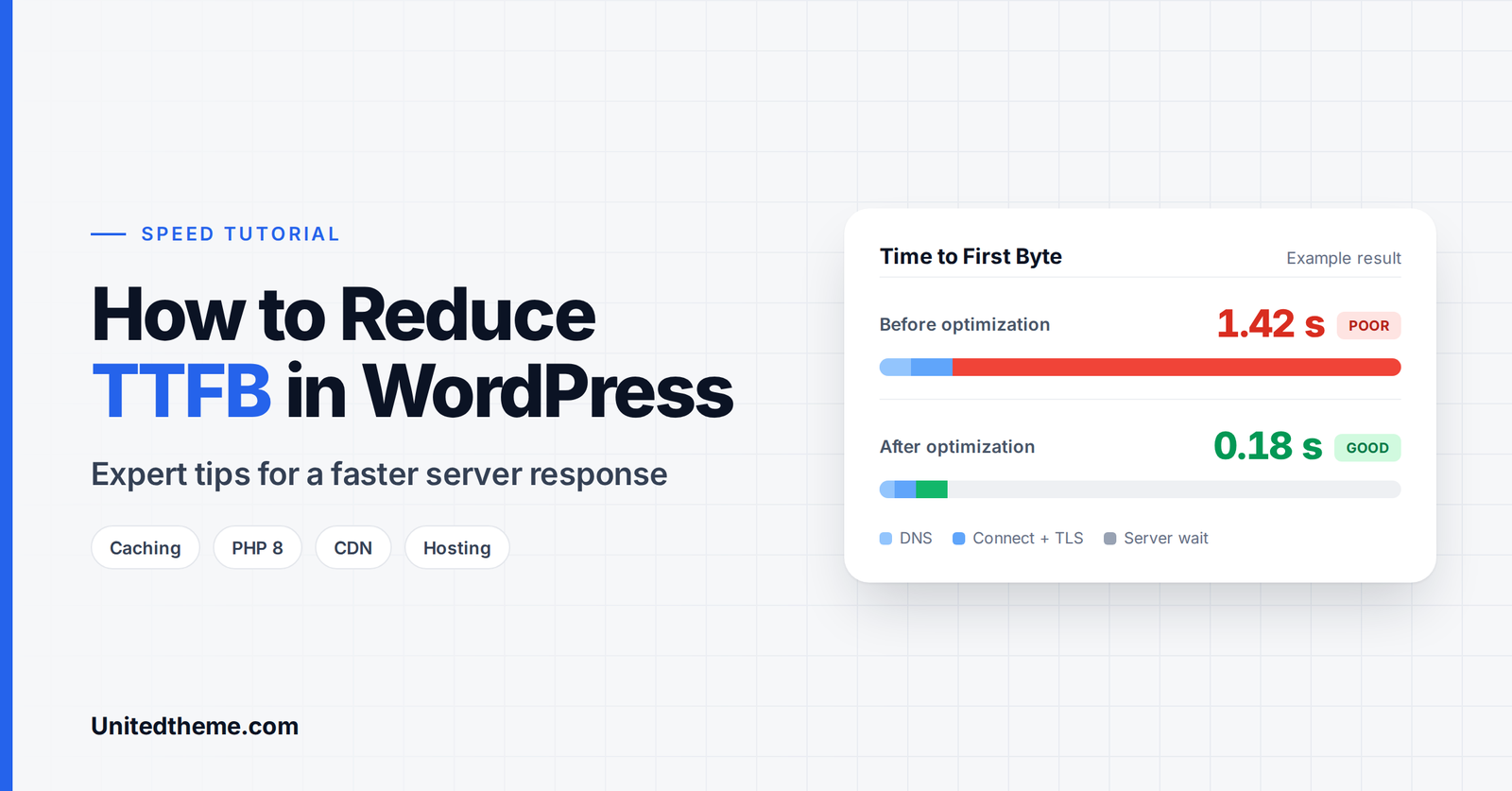
You’ve compressed your images, minified your CSS and installed a caching plugin, yet PageSpeed Insights still warns you that your server responded slowly. Sound familiar?
That warning is about Time to First Byte (TTFB): the time your visitor’s browser waits before receiving the very first byte of your page from the server. Until that first byte arrives, nothing happens. No text, no images, no layout. Every other speed metric has to wait for it.
The good news is that TTFB is one of the most fixable performance problems in WordPress. In this guide, we’ll explain what TTFB is, what causes it to be slow, how to measure it accurately, and 12 expert tips to reduce it, starting with the quick wins and moving on to advanced server-level fixes.
What you’ll learn:
- What TTFB is and why it matters for speed, SEO and conversions
- What counts as a good TTFB score
- How to measure TTFB accurately (and avoid common testing mistakes)
- What causes slow TTFB in WordPress
- 12 proven ways to reduce TTFB in WordPress
- How to check your results after optimizing
What Is Time to First Byte (TTFB)?
Time to First Byte (TTFB) measures how long it takes from the moment a browser requests a page until the first byte of the server’s response arrives.
Think of ordering at a restaurant. TTFB isn’t how long it takes to finish your meal. It’s how long you wait between placing your order and the first plate arriving at your table. If the kitchen is slow, understaffed or far away, everything that follows is delayed.
TTFB is made up of several stages:
-
Redirects: any redirects before reaching the final URL (for example,
http://→https://→www). - DNS lookup: translating your domain name into the server’s IP address.
- Connection setup: establishing the TCP connection and the TLS (HTTPS) handshake.
- Server processing: your server running PHP, loading WordPress, querying the database and building the page.
- Response travel time: the first byte traveling back across the network to the visitor.
On most WordPress sites, the biggest and most variable part is server processing: the time WordPress spends generating the page. That’s also the part you have the most control over.
Why TTFB Matters
It delays every other metric. TTFB isn’t one of Google’s three Core Web Vitals, but it directly affects two key loading metrics: First Contentful Paint (FCP) and Largest Contentful Paint (LCP), which is a Core Web Vital. If your server takes 1.5 seconds to respond, a good LCP of 2.5 seconds or less becomes very hard to reach.
It affects SEO. Google uses Core Web Vitals as part of its page experience signals. A slow TTFB drags down LCP, which can hold back your search performance. A slow server can also limit how efficiently search engines crawl your site.
It affects conversions and bounce rates. Visitors don’t see “TTFB”. They see a blank white screen. The longer it lasts, the more people give up and leave.
It’s a warning sign. A high TTFB often points to deeper problems: underpowered hosting, missing caching, an outdated PHP version or plugins doing too much work on every page load.
What Is a Good TTFB?
According to Google’s guidance on web.dev, these are the thresholds for TTFB, measured at the 75th percentile of real page loads:
| Rating | TTFB |
|---|---|
| ✅ Good | 0.8 seconds or less |
| ⚠️ Needs improvement | Between 0.8 and 1.8 seconds |
| ❌ Poor | More than 1.8 seconds |
Treat 0.8 seconds as the minimum target. A well-optimized WordPress site serving cached pages can often respond in well under 200–300 milliseconds for visitors near the server or a CDN edge.
How to Measure TTFB in WordPress
Before making changes, measure your current TTFB so you can compare results later.
1. Google PageSpeed Insights
Go to pagespeed.web.dev and enter your URL.
- In the field data section (“Discover what your real users are experiencing”), look for Time to First Byte (TTFB). This is real-user data from the Chrome UX Report, available for sites with enough traffic.
- In the diagnostics of the lab test, look for audits about the initial server response time or document request latency. These show how long the server took to respond during the test.
2. Chrome DevTools
- Open your site in Chrome, right-click and choose Inspect.
- Go to the Network tab and reload the page.
- Click the first request (your page’s HTML document).
- Open the Timing tab and look at “Waiting for server response”. This is the server-processing part of TTFB.
3. Command Line (for Developers)
You can measure TTFB with curl:
bash
curl -o /dev/null -s -w "DNS: %{time_namelookup}s\nConnect: %{time_connect}s\nTLS: %{time_appconnect}s\nTTFB: %{time_starttransfer}s\nTotal: %{time_total}s\n" https://example.com/Run it a few times. The first request may be slower if the page isn’t cached yet.
4. Testing From Multiple Locations
Your TTFB depends on where the visitor is. Tools like WebPageTest, DebugBear, KeyCDN’s Performance Test and GTmetrix let you test from different cities around the world, which is great for spotting whether you need a CDN.
Testing Tips: Avoid Misleading Results
- Test while logged out (or in an incognito window). Logged-in WordPress users usually bypass the page cache, so their TTFB is much slower.
- Test the same page several times. The first visit after clearing your cache “warms up” the cache and will be slower.
- Test more than your homepage. Check blog posts, category pages, product pages and the checkout separately.
- Compare lab and field data. Lab tests show a single moment. Field data shows what real visitors experience over 28 days.
What Causes Slow TTFB in WordPress?
WordPress is a dynamic platform. Unless a page is cached, every visit makes the server run PHP code, load your theme and plugins, and query the database before sending anything back. Common causes of slow TTFB include:
- Slow or overloaded hosting (especially cheap, crowded shared servers)
- No page caching, so WordPress rebuilds every page from scratch
- An outdated PHP version
- Heavy or poorly coded plugins running expensive tasks on every request
- A bloated database, especially oversized autoloaded options
- Slow external API calls made while the page is generated
- Servers located far away from your visitors
- Slow DNS or redirect chains
- Traffic spikes that exceed your server’s resources
Now let’s fix them.
12 Expert Tips to Reduce TTFB in WordPress
1. Use Fast, Quality WordPress Hosting
Your hosting is the foundation of your TTFB. No caching plugin can fully compensate for a slow, overcrowded server.
Look for hosting with:
- Modern hardware (fast CPUs and NVMe storage)
- Server-level caching (such as LiteSpeed, NGINX FastCGI or Varnish caching)
- Support for the latest PHP versions
- Built-in object caching (Redis or Memcached)
- HTTP/2 and HTTP/3 support
- Data centers close to your audience
If you’re on budget shared hosting and your TTFB is consistently above one second even with caching, upgrading to a managed WordPress host, a cloud VPS or a higher hosting tier is often the single biggest improvement you can make.
Tip: Choose a data center close to the majority of your visitors. If most of your audience is in South Asia, a server in Singapore or Mumbai will usually respond faster than one in the US.
2. Enable Page Caching
This is the most effective TTFB fix for most WordPress sites. Page caching saves a ready-made HTML copy of each page. Instead of running PHP and database queries for every visitor, the server instantly delivers the saved copy.
The difference can be dramatic: an uncached page might take a second or more to generate, while a cached page is often served in a fraction of that time.
Options for page caching:
- Host-level caching: Many managed WordPress hosts include built-in server caching. Check your hosting dashboard first.
- LiteSpeed Cache: Free and very powerful if your host uses a LiteSpeed web server.
- WP Rocket: A premium, beginner-friendly caching plugin that works on most hosts.
- W3 Total Cache or WP Super Cache: Popular free options.
Important: Use only one page caching solution. Running two caching plugins, or a caching plugin that conflicts with your host’s built-in caching, can cause errors and slow your site down.
Recommended settings: Enable caching for mobile visitors, turn on cache preloading so pages are cached before visitors arrive, and set a sensible cache lifespan.
3. Upgrade to the Latest PHP Version
WordPress is written in PHP, and each major PHP release brings real performance gains. Sites still running old PHP versions process every uncached request more slowly, and they also miss out on important security fixes.
How to check your PHP version: Go to Tools → Site Health → Info → Server.
How to upgrade: Most hosts let you change the PHP version in the hosting dashboard (cPanel, hPanel or a custom panel). Choose the newest PHP 8.x version that WordPress recommends on its requirements page and that your host supports.
Before upgrading: Back up your site and update all plugins and themes. Ideally, test on a staging site first, since old plugins can break on newer PHP versions.
Also make sure OPcache is enabled on your server. OPcache stores compiled PHP code in memory so it doesn’t have to be recompiled on every request. Most quality hosts enable it by default, and you can ask your host’s support to confirm.
4. Add Persistent Object Caching (Redis or Memcached)
Page caching helps visitors who view cached pages, but some requests can’t be cached: logged-in users, WooCommerce carts and checkouts, membership areas and the WordPress admin. For these, object caching makes a big difference.
Object caching stores the results of database queries in memory, so WordPress doesn’t have to run the same queries again and again. Redis and Memcached are the most common options.
How to enable it:
- Check whether your host offers Redis or Memcached. Many managed hosts include it with a one-click toggle.
- Install a connector plugin such as Redis Object Cache, or use the object cache feature in LiteSpeed Cache or W3 Total Cache.
- Enable the object cache and confirm the connection status shows as connected.
WordPress’s Site Health tool will even recommend a persistent object cache if your host supports one.
5. Use a CDN (Content Delivery Network)
A CDN stores copies of your content on servers around the world and serves visitors from the location closest to them. That shortens the physical distance data must travel, reducing the network part of TTFB.
For the biggest TTFB gains, choose a CDN that can cache your HTML pages at the edge, not just images, CSS and JavaScript. When the full page is cached at the edge, visitors far from your server can still get a fast response.
Popular options:
- Cloudflare (free plan available), with Automatic Platform Optimization (APO) for WordPress to cache HTML at the edge
- BunnyCDN
- QUIC.cloud (built for LiteSpeed Cache)
- CDNs built into managed WordPress hosting
6. Reduce and Audit Your Plugins
Every active plugin can add code that runs on every page load. Some plugins are lightweight. Others run expensive database queries, call external APIs or load large libraries everywhere.
How to find slow plugins:
- Install the free Query Monitor plugin.
- Visit a slow page while logged in as an administrator.
- Check Query Monitor’s panels for slow database queries, queries by component (which plugin or theme triggered them) and HTTP API calls.
Then act on what you find:
- Deactivate and delete plugins you no longer use.
- Replace heavy plugins with lighter alternatives.
- Avoid stacking plugins that do the same job (for example, two SEO or two security plugins).
- Be especially wary of plugins that make external API requests while the page is being built, such as social share counters or live feeds.
Note: It’s not about the number of plugins but their quality. Twenty well-coded plugins can be faster than three poorly coded ones.
7. Optimize Your WordPress Database
Over time, your database collects clutter: post revisions, spam and trashed comments, expired transients and leftover data from deleted plugins. A bloated database makes queries slower, especially on uncached pages.
Pay special attention to autoloaded options. WordPress loads every “autoloaded” option on every single page request. If deleted plugins left behind large autoloaded data, every request gets slower. Recent versions of WordPress flag oversized autoloaded options in Tools → Site Health.
How to clean up safely:
- Back up your database first.
- Use a plugin like WP-Optimize or Advanced Database Cleaner to remove revisions, spam, trashed items and expired transients.
- Limit future revisions by adding this line to your
wp-config.phpfile:
php
define( 'WP_POST_REVISIONS', 10 );- Check for large autoloaded options left behind by plugins you no longer use, and remove them carefully (or ask a developer to help).
8. Use a Fast DNS Provider
Every new visitor’s browser must first look up your domain’s IP address. A slow DNS provider adds delay before the connection even begins.
Many domain registrars and budget hosts use basic DNS services. Moving your DNS to a fast, global provider such as Cloudflare DNS (free), Amazon Route 53 or the premium DNS offered by many managed hosts can trim valuable milliseconds, especially for international visitors.
9. Eliminate Unnecessary Redirects
Each redirect adds a full round trip before the real page starts loading. Redirect chains (one redirect leading to another) are especially costly.
Common culprits:
-
http://example.com→https://example.com→https://www.example.com(two hops instead of one) - Old URLs redirecting to other redirected URLs
- Internal links pointing to outdated URLs that redirect
How to fix them:
- Make sure your WordPress Address and Site Address (Settings → General) use your preferred final version, such as
https://www.example.com. - Set up a single, direct redirect from every old variation to the final URL at the server or CDN level.
- Update internal links and menus to point directly to final URLs.
- Use a redirect manager plugin like Redirection to find and clean up redirect chains.
10. Enable HTTP/2, HTTP/3 and Modern TLS
Modern protocols make connections faster and more efficient:
- HTTP/2 and HTTP/3 (QUIC) reduce connection overhead and handle multiple requests more efficiently. HTTP/3 performs especially well on mobile and unreliable networks.
- TLS 1.3 completes the secure HTTPS handshake faster than older versions.
Most quality hosts and CDNs, including Cloudflare, support these out of the box. You may simply need to enable them in your CDN or hosting dashboard.
11. Replace WP-Cron With a Real Server Cron Job
By default, WordPress runs scheduled tasks (WP-Cron) by checking on page visits. On busy sites, or when heavy scheduled tasks run, this can add processing time to visitor requests.
A more efficient approach is to disable the built-in trigger and run cron on a real server schedule:
- Add this line to
wp-config.php:
php
define( 'DISABLE_WP_CRON', true );- In your hosting control panel, create a cron job that runs every 5–15 minutes:
bash
wget -q -O - https://example.com/wp-cron.php?doing_wp_cron >/dev/null 2>&1Caution: If you disable WP-Cron, you must set up the server cron job. Otherwise, scheduled posts, backups and plugin tasks will stop running.
12. Choose a Lightweight Theme
Heavy, feature-stuffed themes and page builders can add significant processing time and database queries to every uncached request. A lightweight, well-coded theme helps your server generate pages faster.
Block themes built for the WordPress Site Editor are a great choice. They use WordPress’s native block system, need no extra page builder plugin, and generally produce leaner pages. You can explore the fast, Site Editor-ready themes at Unitedtheme.com for a performance-focused starting point.
Bonus Tips for Advanced Users
Cache WooCommerce smartly. Shops can’t cache cart, checkout and account pages, so pair page caching for product and category pages with a strong object cache for dynamic pages.
Reduce admin-ajax load. Some plugins fire frequent admin-ajax.php requests. Query Monitor and your server logs can help you find them, and the Heartbeat Control plugin can reduce Heartbeat API frequency.
Use 103 Early Hints. Some CDNs and hosts (including Cloudflare) support 103 Early Hints, which let the browser start loading critical resources while the server is still preparing the page.
Monitor continuously. Tools like DebugBear, New Relic or your host’s application monitoring can alert you when TTFB rises, so you catch problems before visitors do.
TTFB Optimization Checklist
| ✅ | Task | Impact |
|---|---|---|
| ☐ | Move to quality hosting with server-level caching | High |
| ☐ | Enable page caching and cache preloading | High |
| ☐ | Upgrade to the latest recommended PHP 8.x version | High |
| ☐ | Enable a persistent object cache (Redis or Memcached) | Medium–High |
| ☐ | Use a CDN with HTML edge caching | Medium–High |
| ☐ | Audit plugins with Query Monitor | Medium |
| ☐ | Clean the database and check autoloaded options | Medium |
| ☐ | Switch to a fast DNS provider | Low–Medium |
| ☐ | Remove redirect chains | Low–Medium |
| ☐ | Enable HTTP/2, HTTP/3 and TLS 1.3 | Low–Medium |
| ☐ | Replace WP-Cron with a server cron job | Low–Medium |
| ☐ | Use a lightweight block theme | Medium |
How to Check Your Results
After making changes:
- Clear all caches (plugin, server and CDN), then visit your key pages to warm the cache up again.
- Re-test with the same tools and locations you used for your baseline, while logged out.
- Compare before and after numbers for TTFB, FCP and LCP.
- Monitor field data over the next 28 days in PageSpeed Insights and Google Search Console’s Core Web Vitals report, since real-user data updates gradually.
Make one change at a time where possible. That way, if something breaks or performance drops, you’ll know exactly what caused it.
Frequently Asked Questions
What is a good TTFB for WordPress?
Google considers a TTFB of 0.8 seconds or less good. Well-optimized WordPress sites serving cached pages often achieve 200–300 milliseconds or less for nearby visitors.
Is TTFB a Core Web Vital?
No. The three Core Web Vitals are Largest Contentful Paint (LCP), Interaction to Next Paint (INP) and Cumulative Layout Shift (CLS). However, TTFB directly affects LCP, so improving TTFB usually improves your Core Web Vitals.
Why is my TTFB high even with a caching plugin?
Common reasons include: you’re testing while logged in (which bypasses the cache), the page wasn’t cached yet, your caching plugin conflicts with server caching, the page is excluded from caching (like WooCommerce cart pages), or your hosting server itself is slow or far from the visitor.
Does a CDN reduce TTFB?
Yes, especially for visitors far from your server. The biggest improvement comes from CDNs that cache your full HTML pages at the edge, not just static files.
Will upgrading PHP reduce TTFB?
Usually, yes. Newer PHP versions run WordPress code faster, which reduces server processing time for uncached requests. Always back up and test before upgrading.
Can too many plugins slow down TTFB?
Yes, if those plugins run heavy tasks on every page load. Plugin quality matters more than quantity. Use Query Monitor to identify plugins that add slow database queries or external API calls.
Should I change my hosting to fix TTFB?
If you’ve enabled caching, upgraded PHP and cleaned up plugins and your TTFB is still consistently high, your hosting is likely the bottleneck. Upgrading to faster hosting is often the most effective fix at that point.
Recommended Video Tutorials
Prefer to learn by watching? These YouTube videos walk through TTFB and server response time improvements:
- How to improve Time to First Byte (TTFB), by DebugBear: a clear explanation of what makes up TTFB and how to diagnose it. youtube.com/watch?v=xkl4ek3kVKo
- WordPress Tutorial: How to Reduce Time to First Byte (TTFB) in WordPress, by My First Website: a beginner-friendly WordPress walkthrough. youtube.com/watch?v=NlopmLpykk4
- How to Solve Reduce Initial Server Response Time (TTFB) – PageSpeed Insights, by NERD UP: fixing the PageSpeed Insights server response warning. youtube.com/watch?v=7bOoiL_UnKI
- Fix the TTFB and Largest Contentful Paint Problem, by Imran Siddiq (Web Squadron): how TTFB and LCP are connected and how to improve both. youtube.com/watch?v=YpAE8j8zRZ4
- How I Reduced Server Response Times (TTFB) in WordPress to Under 200ms, by Online Media Masters: an older but detailed case study of hosting and caching changes. youtube.com/watch?v=cfmUe528jg8
Editor’s tip: Paste any of these YouTube URLs on its own line in the WordPress block editor to embed the video automatically.
Conclusion
TTFB is the starting line for every page load. If your server is slow to respond, every other speed improvement has less impact. The good news is that most WordPress sites can cut TTFB dramatically with a few focused changes.
Here’s the short version:
- Measure first, while logged out, from multiple locations.
- Start with the big wins: quality hosting, page caching and the latest PHP version.
- Add object caching and a CDN for dynamic pages and global visitors.
- Clean up plugins, the database, redirects and DNS.
- Re-test and monitor to confirm your improvements.
Get your TTFB under 0.8 seconds (and ideally much lower), and you’ll give every visitor a faster first impression, while giving your Core Web Vitals and SEO a solid boost.
Want a fast foundation from the start? Explore the lightweight, Site Editor-ready WordPress themes at Unitedtheme.com.
Keep Your WordPress Site Fast, Secure and Up to Date, Every Month
Speed isn’t a one-time fix. Plugins update, content grows, traffic changes and new performance issues creep in over time. With Unitedtheme’s WordPress care plans and retainers, our team looks after your website on an ongoing basis. That includes regular updates, performance monitoring, TTFB and Core Web Vitals checks, security hardening, backups, bug fixes and continuous improvements, all handled by WordPress experts who know your site inside out. Instead of scrambling when something slows down or breaks, you get a dedicated team keeping everything running smoothly in the background. Explore Unitedtheme’s WordPress retainer plans and give your site the ongoing care it deserves.
Still Struggling With a Slow Server Response? Let Our WordPress Developers Fix It
Reducing TTFB often means digging into server configuration, caching layers, database queries and plugin code, and that’s where an expert eye makes all the difference. At Unitedtheme, we offer professional WordPress development services focused on speed: we diagnose what’s slowing your server response, configure page and object caching, upgrade and fine-tune your PHP and hosting setup, optimize your database, replace heavy plugins with lean custom code and get your Core Web Vitals into the green. Our developers handle the technical heavy lifting so your site responds instantly and keeps visitors engaged. If you’d rather focus on your business than troubleshooting server performance, hire Unitedtheme’s expert WordPress developers and give your site the speed it deserves.


Leave a Reply