

If you have shopped for a WordPress theme recently, you have seen the labels: block theme, classic theme, sometimes hybrid theme. They look like technical footnotes, but they decide how you will build and edit your whole site, which screen you use to change the header, how you adjust colors and whether you need a page builder at all.
This guide to block themes vs classic themes explains the difference in plain language, compares them side by side and helps you decide which is right for your next site.
The Short Answer
A classic theme is built with PHP template files and is customized through the Customizer, widgets and menus screens. A block theme is built from blocks and is customized in the Site Editor, where you edit every part of the site, including the header and footer, visually.
Block themes arrived with full site editing in WordPress 5.9, released in January 2022. Classic themes are older, still fully supported and still power a very large share of WordPress sites.
What Is a Classic Theme?
Classic themes are the original way of building WordPress themes. The theme’s developer writes templates in PHP, and those templates decide the structure of your pages. As a site owner you customize what the developer has made adjustable:
- Appearance → Customize for colors, fonts, logo and layout options, as far as the theme allows.
- Appearance → Widgets for sidebars and footer areas.
- Appearance → Menus for navigation.
If you want to change something the theme does not expose, such as moving the search icon in the header, you usually need a child theme and code, or a page builder plugin.
What Is a Block Theme?
In a block theme, the templates themselves are made of blocks, the same blocks you use to write posts. The header is a set of blocks. The footer is a set of blocks. The single-post template is a set of blocks. You open Appearance → Editor and change any of them directly.
Block themes also use a file called theme.json, which defines the site’s color palette, typography, spacing and default block styles in one place. In the Site Editor this appears as Styles, where you adjust the design for the whole site.
Key ideas you will meet:
- Templates control whole page types, such as Single Post, Page, Archive and 404.
- Template parts are reusable sections such as the Header and Footer.
- Patterns are ready-made arrangements of blocks that you insert and edit.
- Global Styles set site-wide colors, fonts and spacing.
Block Themes vs Classic Themes: Side-by-Side
| Block theme | Classic theme | |
|---|---|---|
| Where you customize | Site Editor (Appearance → Editor) | Customizer, Widgets, Menus |
| Header and footer editing | Visual, with blocks | Limited to theme options, or code |
| Templates | HTML files made of blocks | PHP files |
| Site-wide styles | Global Styles and theme.json | Customizer options and CSS |
| Sidebars | Built with blocks in templates | Widget areas |
| Page builder needed | Usually not | Often used for custom layouts |
| Minimum WordPress version | 5.9 or higher | Works on older versions |
| Learning curve | New interface to learn | Familiar to long-time users |
Advantages of Block Themes
You can edit everything. There is no locked header or untouchable footer. If you can see it, you can click it and change it.
One consistent editor. You use the same block interface for posts, pages and templates, so there is less to learn overall.
Less reliance on plugins. Many layouts that once required a page builder can be made with core blocks, which keeps your site lighter.
Performance. WordPress can load styles only for the blocks used on a page, which helps keep pages lean.
Future direction. New WordPress design features are built for the Site Editor first.
Advantages of Classic Themes
Familiarity. If you have used WordPress for years, the Customizer and Widgets screens feel like home.
Huge ecosystem. Thousands of mature classic themes and compatible plugins exist, with a decade of tutorials behind them.
Guardrails. A classic theme limits what you can change, which can be a benefit. It is harder to break the design by accident, useful when several people edit a site.
Page builder workflows. Many established page builders were designed around classic themes, and some teams have refined workflows based on them.
What About Hybrid Themes?
A hybrid theme is a classic theme that adopts some block features, for example theme.json for global styles or block-based template parts, while keeping PHP templates. Hybrids offer a gradual path for existing sites, but for a new site it is usually simpler to choose one approach clearly.
A Closer Look at the Site Editor
Since the Site Editor is where you will spend your time with a block theme, it helps to know its main areas before you open it.
Navigation. This is where you manage your menus. Each menu is a Navigation block that you can reuse in the header, footer or anywhere else.
Styles. This panel controls the design of the whole site: the color palette, typography, spacing and the default appearance of individual blocks such as buttons and headings. Many block themes include several style variations, which are complete alternative looks that you can switch between with one click.
Pages. You can create and edit pages here without leaving the editor, and see them inside the full site layout.
Templates. These define the structure of each type of page. Editing the Single Posts template, for example, changes how every blog post is displayed.
Patterns. Here you find the theme’s ready-made sections, along with any you create yourself. Template parts such as the header and footer are also managed here.
A useful habit is to make small changes one at a time and preview them. The Site Editor also keeps revisions for templates and styles, so you can step back if a change does not work.
Real Examples of Block Themes
Seeing how block themes are used in practice makes the idea clearer. These are all block themes built for the Site Editor:
- Twenty Twenty-Five, a default WordPress theme, shows the standard approach with a wide set of patterns and style variations.
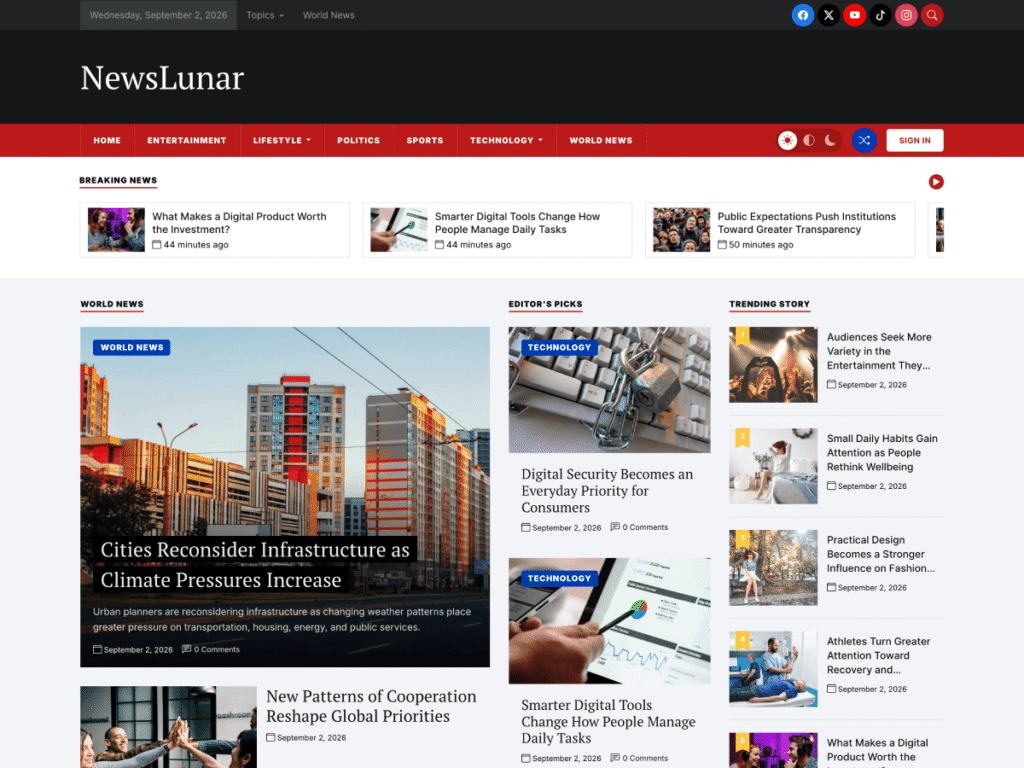
- NewsLunar uses blocks to build a full news homepage, with a breaking-news carousel, lead story and category sections that you can rearrange.
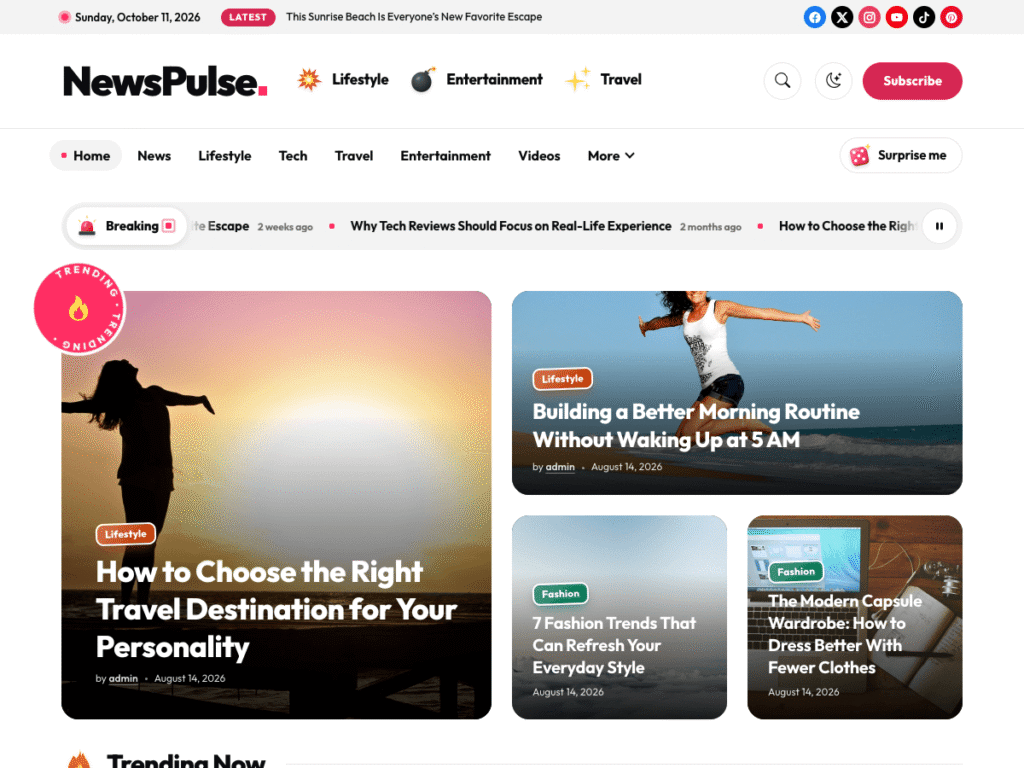
- NewsPulse builds an image-first magazine homepage from ready-made sections.
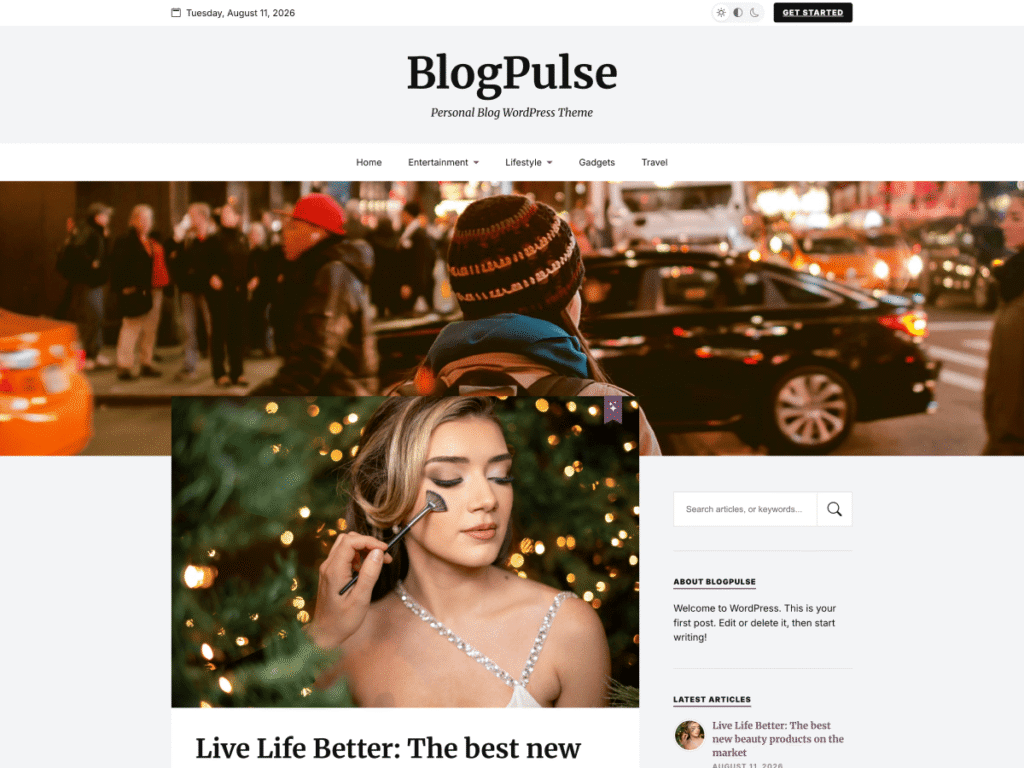
- BlogPulse applies the same idea to a calm, single-column blog.
- BlogNoir offers a dark, elegant take for personal blogs.
In each case the homepage, header and footer are made of blocks, so you can change them without touching code.
Performance: Do Block Themes Really Load Faster?

Block themes have some structural advantages, though the result always depends on the individual theme.
- Selective style loading. WordPress can load the CSS for only the blocks that appear on a page, instead of one large stylesheet for everything.
- Less JavaScript. Many block themes use very little JavaScript, because layout is handled by blocks and CSS.
- Fewer plugins. When the Site Editor replaces a page builder, a large amount of extra code disappears from every page.
- Standardized markup. Core blocks output consistent, well-tested HTML.
A badly built block theme can still be slow, and a carefully built classic theme can be fast. But if two themes are built with equal care, the block theme usually has less to load.
Common Myths About Block Themes
“Block themes are only for developers.” The opposite is true. Block themes were created so that people who do not code can change any part of their site.
“You lose control with a block theme.” You gain it. Every template and template part is editable. Developers can still add custom code, custom blocks and child themes.
“Classic themes are obsolete.” They are not. Classic themes are supported and widely used, and many are actively maintained.
“You cannot use plugins with block themes.” Almost all plugins work with both types. Plugins that rely on widget areas increasingly provide blocks as well.
“Block themes all look the same.” Style variations, patterns and custom templates allow very different designs. A news portal and a minimal blog can both be block themes.
Tips for Your First Week With a Block Theme
- Import the demo content if the theme offers it. It is the quickest way to see how templates and patterns fit together.
- Start with Styles. Set your colors and fonts first, since they affect everything else.
- Edit the header and footer next. Add your logo, menu and contact details.
- Customize the homepage by rearranging or removing sections, not by starting from a blank page.
- Use patterns to add new sections quickly.
- Leave the single-post template alone at first. Most themes get it right by default.
- Check the mobile view as you go, using the preview options in the editor.
Which One Should You Choose?
Choose a block theme if:
- You are starting a new site.
- You want to change the header, footer and templates yourself, without code.
- You prefer not to depend on a page builder.
- You want a design that keeps up with new WordPress features.
Choose a classic theme if:
- You have an existing site that works well and no reason to rebuild.
- Your team relies on a specific page builder or plugin that expects a classic theme.
- You want strict limits on what editors can change.
For most new blogs, magazines and news sites in 2026, a block theme is the better starting point. Every recent Unitedtheme release, including NewsLunar for news and BlogPulse for blogs, is a block theme for this reason.
How to Tell Which Type a Theme Is
- Check the menu. After activating a theme, look under Appearance. If you see Editor, it is a block theme. If you see Customize and Widgets, it is classic.
- Check WordPress.org. Block themes carry the “Full Site Editing” feature tag.
- Check the requirements. A theme that requires WordPress 5.9 or higher and mentions the Site Editor is a block theme.
Switching From a Classic Theme to a Block Theme
Your posts, pages, media and categories are safe when you switch. What does not carry over automatically is the design layer:
- Widgets need to be rebuilt as blocks inside templates.
- Menus can usually be imported into the Navigation block.
- Customizer settings such as colors and fonts need to be set again under Styles.
- Custom CSS should be reviewed, since class names change.
Always test on a staging copy first. If the site matters to your business, our WordPress migration service can handle the move for you.
Do Block Themes Work With Child Themes and Custom Code?
Yes. Developers can still create a child theme for a block theme, most often to add a custom theme.json, extra patterns or small pieces of PHP. In many cases a child theme is no longer needed at all, because changes you make in the Site Editor are saved in the database and survive theme updates. If you want to export your customizations, the Site Editor can export the theme with your changes included, which is useful for moving a design between sites.
Frequently Asked Questions
Are classic themes going away?
No. WordPress continues to support classic themes, and there is no announced end date. New design features, however, are focused on block themes.
Are block themes faster?
They can be, because WordPress loads block styles selectively and you often need fewer plugins. Hosting, images and caching still have the biggest effect on speed.
Do block themes work with page builders?
Some page builders support block themes, but you rarely need one. The Site Editor covers most layout needs.
Can I use the Customizer with a block theme?
Generally no. The Customizer is hidden for block themes unless a plugin requires it. Styles in the Site Editor replaces it.
Is the Site Editor hard to learn?
It takes an hour or two to feel comfortable. If you already write posts with blocks, you know most of it.
Final Thoughts
Classic themes are stable and familiar. Block themes are flexible and where WordPress is heading. For a new site, start with a block theme and learn the Site Editor once. Browse our block themes to see what is possible, or read our lists of the best free news themes and best minimal blog themes.

Leave a Reply