
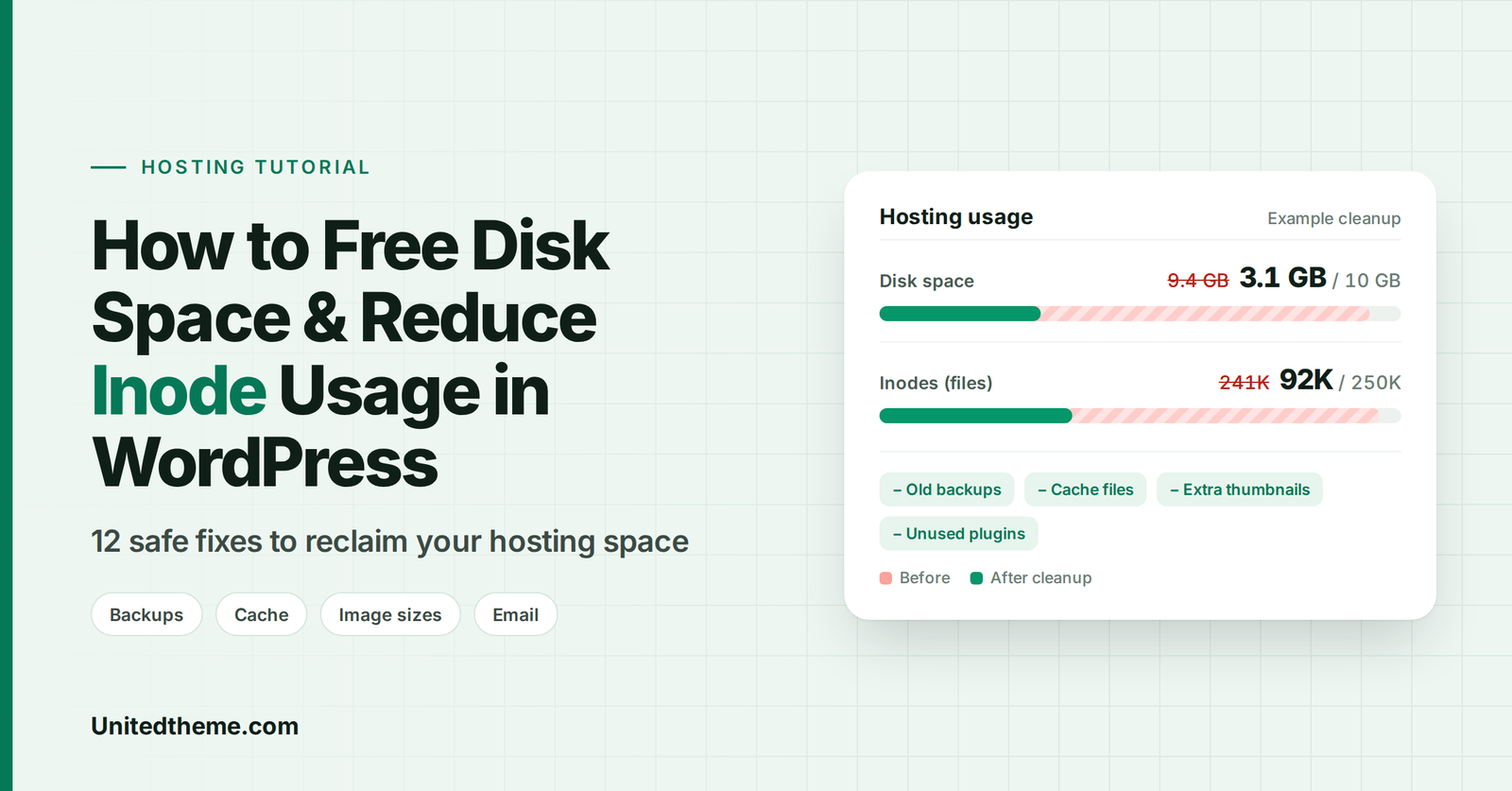
You log in to your hosting dashboard and see a bright red warning: “Disk usage almost full” or “Inode limit reached.” Maybe uploads have started failing, backups won’t run, emails are bouncing or your site has slowed down for no obvious reason.
These are classic signs that your hosting account is running out of storage space or inodes. Both limits are common on shared hosting, and WordPress sites quietly fill them up over time with backups, cache files, image thumbnails, logs and old plugins.
The good news is that you can usually reclaim a lot of space in under an hour without upgrading your plan. In this guide, we’ll explain what inodes are, how to find out what’s using your space, and 12 safe ways to free disk space and reduce inode usage in WordPress.
What you’ll learn:
- What inodes are and how they differ from disk space
- What happens when you hit your hosting limits
- How to check your disk and inode usage
- What usually eats up space on WordPress sites
- 12 practical ways to free disk space and reduce inodes
- How to keep usage under control going forward
What Are Inodes?
An inode is a record your server’s file system uses to keep track of a file or folder. Put simply: every file, folder, email message and image on your hosting account uses one inode.
Think of your hosting account as a library:
- Disk space is how much shelf space the books take up.
- Inodes are the number of catalog cards. Every single item needs one, whether it’s a thick encyclopedia or a one-page leaflet.
That’s why you can run out of inodes even when you have plenty of disk space left. A folder containing 100,000 tiny cache files might use only a few megabytes, but it consumes 100,000 inodes.
Disk Space vs. Inodes
| Disk space | Inodes | |
|---|---|---|
| What it measures | The total size of your files (MB/GB) | The total number of files and folders |
| Filled up by | Large files: backups, videos, high-resolution images, databases | Lots of small files: cache, thumbnails, emails, sessions, logs |
| Example | One 2 GB backup = 2 GB of space, 1 inode | 50,000 cache files = small size, 50,000 inodes |
Most shared and many managed hosting plans set limits for both. Inode limits on shared hosting commonly range from around 100,000 to several hundred thousand, depending on the provider and plan. Check your host’s terms for your exact limits.
What Happens When You Run Out?
When you hit your disk space or inode limit, things start breaking in confusing ways:
- Uploads fail in the Media Library.
- Plugin, theme and WordPress updates fail, which can leave your site insecure.
- Backups stop running or produce incomplete files.
- Cache plugins can’t write new files, slowing your site down.
- Emails bounce or stop arriving in hosted mailboxes.
- Database errors may appear if MySQL can’t write data.
- Your host may suspend features or ask you to upgrade if you stay over the limit.
So it’s worth fixing early, ideally before you get close to the limit.
How to Check Your Disk Space and Inode Usage
In cPanel
- Log in to cPanel.
- In the right-hand sidebar (Statistics), look for Disk Usage and File Usage (or Inodes). These show how much of each limit you’ve used.
- For a detailed breakdown, go to Files → Disk Usage. This shows which folders take up the most space.
In Hostinger hPanel, Plesk and Other Dashboards
Most hosting dashboards show storage and inode usage on the main overview or under a Resources, Usage or Statistics section. Hostinger’s hPanel, for example, shows both disk and inode usage on the website dashboard.
Using SSH (Advanced)
If you have SSH access, these commands help you find exactly where your files are:
bash
# Show the largest folders in the current directory
du -sh * .[^.]* 2>/dev/null | sort -rh | head -20

# Count files (inodes) in each folder of the current directory
for d in */ .*/; do echo "$(find "$d" 2>/dev/null | wc -l) $d"; done | sort -rn | head -20
Run them from your home directory first, then drill down into the biggest folders (for example, public_html/wp-content/).
Inside WordPress
Go to Tools → Site Health → Info and open the Directories and Sizes section. WordPress shows the size of your uploads, themes, plugins and WordPress directories, plus your database size. (It shows size, not inode counts.)
What Usually Eats Up Space on WordPress Sites?
In our experience, the biggest culprits are:
- Old backups stored on the same server (often the #1 cause of disk usage)
- Cache files from caching plugins (a major cause of high inode counts)
- Image thumbnails: WordPress creates several resized copies of every image you upload
- Email accounts, including inboxes, spam and trash folders
- Unused plugins and themes
- Old staging sites, test installs and leftover copies
-
Log files such as
error_loganddebug.log - A bloated database with revisions, spam comments and transients
- Large uploaded files like ZIPs, videos and PDFs in the Media Library
Now let’s clean them up.
12 Ways to Free Disk Space and Reduce Inode Usage in WordPress
Before you start: Make a complete backup of your site (files and database) and download it to your computer or cloud storage. Never delete files you’re unsure about. When in doubt, download a copy first.
1. Delete Old Backups Stored on Your Server
Backup plugins often save backup archives inside your hosting account. Over months, these pile up, and each one can be as large as your entire site.
Where to look:
| Backup plugin | Common backup folder |
|---|---|
| UpdraftPlus | /wp-content/updraft/ |
| All-in-One WP Migration | /wp-content/ai1wm-backups/ |
| Duplicator |
/wp-content/backups-dup-lite/ or /wp-content/backups-dup-pro/
|
| BackWPup | /wp-content/uploads/backwpup-* |
| Host or cPanel backups | Often in your home directory (e.g., backup-*.tar.gz files) |
What to do:
- Download any backups you want to keep to your computer or cloud storage.
- Delete old backups from the server, using the plugin’s interface where possible, or your hosting File Manager.
- Change your backup plugin settings to store backups remotely, in Google Drive, Dropbox, Amazon S3 or another cloud service, instead of on your server.
- Set a retention limit (for example, keep only the last 3–5 backups).
Tip: Storing backups on the same server as your site is risky anyway. If the server fails, you lose both. Remote backups free up space and protect you better.
2. Clear and Control Your Cache Files
Caching plugins store a separate file for each cached page, often with separate versions for mobile, logged-in users and different URL parameters. On a large site, this can mean tens of thousands of files.
What to do:
- Clear your cache from your caching plugin’s settings (for example, Clear cache / Purge all in WP Rocket, LiteSpeed Cache or W3 Total Cache).
- Set a reasonable cache lifespan so old files expire automatically.
- Avoid caching URLs with unnecessary query strings, which can create huge numbers of duplicate cache files.
- Check for leftover cache folders from plugins you no longer use, typically in
/wp-content/cache/. If a caching plugin is no longer installed, its old cache folder can usually be deleted safely.
3. Remove Unused Plugins and Themes
Each plugin and theme contains hundreds or thousands of files. Deactivated plugins and unused themes still use disk space and inodes.
What to do:
- Go to Plugins → Installed Plugins, then deactivate and delete any plugins you no longer need.
- Go to Appearance → Themes and delete unused themes. Keep your active theme, its parent theme (if you use a child theme), and one default WordPress theme as a fallback for troubleshooting.
Note: Deactivating isn’t enough. Plugins must be deleted to free up space.
4. Control WordPress Image Sizes
Every time you upload an image, WordPress automatically creates multiple resized copies, and your theme and plugins (such as WooCommerce) can add even more. One upload can easily become five to ten files or more.
WordPress’s default sizes include thumbnail, medium, medium_large (768px), large, plus 1536×1536 and 2048×2048. Very large uploads also get a “-scaled” version. Multiply that by thousands of images, and you have a lot of extra files.
To find which sizes are registered, use a plugin like Regenerate Thumbnails or Image Sizes Control, which lists them.
To stop generating sizes you don’t use, add this code to your child theme’s functions.php or a code snippets plugin like WPCode:
php
/**
 * Stop WordPress from creating unused image sizes.
 * Only remove sizes your theme doesn't actually use.
 */
add_filter( 'intermediate_image_sizes_advanced', function ( $sizes ) {
    unset( $sizes['medium_large'] ); // 768px wide
    unset( $sizes['1536x1536'] );    // 2x medium-large
    unset( $sizes['2048x2048'] );    // 2x large
    return $sizes;
} );
You can also go to Settings → Media and set the width and height of sizes you don’t need to 0.
To clean up existing extra thumbnails, use a plugin that removes unused image sizes and regenerates only the ones you need. (Regenerate Thumbnails has an option to delete old unregistered sizes while regenerating.)
⚠️ Caution: Removing a size your theme actually uses can make images look blurry or broken. Check your theme’s documentation, and test on a staging site first if possible.
5. Clean Up Email Accounts
If your email is hosted on the same account as your website, every single email message is a file, and uses an inode. Old inboxes, spam folders and trash can easily reach tens of thousands of files.
What to do:
- Delete old emails and empty the Spam and Trash folders, using webmail (such as Roundcube) or your email client.
- Delete email accounts you no longer use in cPanel → Email Accounts.
- Set up auto-deletion for spam using Spam Filters in cPanel.
- Consider moving business email to a dedicated email service like Google Workspace or Microsoft 365, which takes email out of your hosting limits entirely.
6. Delete Old Staging Sites, Test Installs and Leftovers
Look through your home directory and public_html for things you no longer need:
- Old staging or dev copies of your site (e.g.,
/staging/,/dev/,/old/,/test/) - Previous site versions left after a redesign or migration
- Unzipped installation folders and
.ziparchives - Sites for addon domains or subdomains you no longer use
Download a copy if you’re unsure, then delete them. Remember to also delete any databases that belonged to those sites (via cPanel → MySQL Databases).
7. Delete Log Files and Turn Off Debug Logging
Log files can grow quietly to hundreds of megabytes or more, especially when a plugin throws the same warning on every page load.
Common log files:
-
error_logfiles in your site’s root and subfolders /wp-content/debug.log- Plugin-specific logs (security, email, SEO and backup plugins often keep their own)
What to do:
- Delete large, old log files (after reviewing any recent errors you need to fix).
- Check
wp-config.phpand make sure debug logging is off on your live site:
php
define( 'WP_DEBUG', false );
define( 'WP_DEBUG_LOG', false );- Fix the errors causing big logs. Otherwise they’ll simply fill up again.
- In plugins that keep logs, set them to auto-delete old entries.
8. Clean Up Your WordPress Database
Many hosts count your database toward your disk space. Over time, it fills up with:
- Post revisions
- Auto-drafts and trashed posts
- Spam and trashed comments
- Expired transients
- Leftover tables from deleted plugins
What to do:
- Back up your database first.
- Use a plugin like WP-Optimize or Advanced Database Cleaner to remove revisions, spam, trash and expired transients, and to optimize tables.
- Limit future revisions by adding this to
wp-config.php:
php
define( 'WP_POST_REVISIONS', 10 );- Have WordPress empty the trash automatically more often (the default is 30 days):
php
define( 'EMPTY_TRASH_DAYS', 7 );9. Delete Unused Media Files
Your Media Library may contain images and files you never used: duplicates, test uploads, old product photos or large videos.
What to do:
- Go to Media → Library, switch to list view, and filter by Unattached to see files not attached to any post. Note: “Unattached” doesn’t always mean unused. An image might still appear in a widget, page builder layout or theme setting.
- Use a cleanup plugin like Media Cleaner to scan for unused files. Always review the results carefully and take a backup first, because these tools can produce false positives.
- Remove large files like ZIP archives and videos you no longer need.
10. Optimize Images and Offload Large Media
Large, uncompressed images consume a lot of disk space.
- Compress and resize images before or after uploading, using plugins like EWWW Image Optimizer, ShortPixel, Imagify or Smush. Some plugins also keep backups of original images, so turn that off (or clean old backups) once you’re happy with the results.
- Use modern formats like WebP, which are smaller than JPEG and PNG. (See our guide on WebP vs. PNG vs. JPEG.)
- Host videos on YouTube or Vimeo and embed them, instead of uploading video files to WordPress.
- For media-heavy sites, offload media to cloud storage (such as Amazon S3, Google Cloud Storage or Bunny Storage) using a plugin like WP Offload Media.
Avoid duplication: If your image optimizer creates separate WebP copies and keeps the original JPEG/PNG files, your file count may go up rather than down. Check your plugin’s settings to understand what it stores.
11. Clear Temporary Files, Sessions and Trash Folders
Other hidden file collections can build up:
-
cPanel File Manager Trash (
.trashfolder in your home directory). Files you “delete” in File Manager may sit here until you empty it. -
Temporary folders like
/tmp/in your home directory - Plugin temp and session files, for example from form, upload and security plugins
-
Upgrade leftovers in
/wp-content/upgrade/, which can usually be emptied safely when no update is running
Enable Show Hidden Files in File Manager to see dot-folders like .trash.
12. Upgrade Your Hosting When You’ve Genuinely Outgrown It
If you’ve cleaned everything and you’re still near your limits, your site may simply have outgrown its plan. That’s a good problem: it usually means your site is growing.
Consider:
- A higher shared hosting tier with more storage and inodes
- Managed WordPress hosting, which often has higher or no inode limits
- A cloud VPS, where you control resources directly
How to Keep Disk and Inode Usage Under Control
Once you’ve cleaned up, a few habits keep things tidy:
- Store backups offsite and keep a limited number of copies.
- Review installed plugins and themes every few months.
- Check disk and inode usage monthly in your hosting dashboard.
- Keep debug logging off on your live site.
- Optimize images before uploading and avoid uploading huge originals.
- Run database cleanups on a schedule (WP-Optimize can automate this).
- Clean up email regularly, or move email to a dedicated provider.
Disk Space & Inode Cleanup Checklist
| ✅ | Task | Saves disk space | Reduces inodes |
|---|---|---|---|
| ☐ | Delete old server backups and switch to remote storage | ⭐⭐⭐ | ⭐ |
| ☐ | Clear cache and remove leftover cache folders | ⭐ | ⭐⭐⭐ |
| ☐ | Delete unused plugins and themes | ⭐⭐ | ⭐⭐⭐ |
| ☐ | Stop generating unused image sizes | ⭐⭐ | ⭐⭐⭐ |
| ☐ | Clean email inboxes, spam and trash | ⭐⭐ | ⭐⭐⭐ |
| ☐ | Remove old staging sites and test installs | ⭐⭐⭐ | ⭐⭐⭐ |
| ☐ | Delete large log files and disable debug logging | ⭐⭐ | ⭐ |
| ☐ | Optimize the database | ⭐⭐ | — |
| ☐ | Remove unused media | ⭐⭐ | ⭐⭐ |
| ☐ | Compress images and offload videos/media | ⭐⭐⭐ | ⭐ |
| ☐ | Empty File Manager trash and temp folders | ⭐⭐ | ⭐⭐ |
Frequently Asked Questions
What is an inode in web hosting?
An inode is a record the server uses to track each file and folder. Every file, folder, image, email and cache file in your hosting account counts as one inode, regardless of its size.
Why are my inodes full when I still have disk space?
Because inodes count the number of files, not their size. Thousands of small files, such as cache files, image thumbnails and emails, can use up your inode limit long before your disk space runs out.
What’s the fastest way to reduce inode usage?
The quickest wins are usually clearing cache files, deleting old email (especially spam and trash), removing unused plugins and themes, and deleting old staging sites or test installs.
What’s the fastest way to free up disk space in WordPress?
Delete old backups stored on your server and switch your backup plugin to cloud storage. This alone often frees several gigabytes.
Is it safe to delete files in wp-content?
Some folders are safe to clean (old backups, leftover cache folders, the upgrade folder when no update is running), but others are critical, such as your active theme, plugins and uploads. Always take a full backup first and only delete files you understand.
Does the WordPress database count toward disk space?
On many hosts, yes. Your MySQL databases are usually included in your total disk usage. Cleaning revisions, spam comments and transients can help.
Will reducing image sizes affect my website?
If you only disable sizes your theme doesn’t use, visitors won’t notice any difference. Removing a size your theme relies on can cause blurry or missing images, so check your theme first and test before making changes.
Recommended Video Tutorials
Prefer watching? These YouTube videos walk through inode and disk space cleanup on popular hosting dashboards:
- What Are Inodes? Fix Hosting Inodes Limit Full Issue! (Complete Guide), by Webify Labs: a clear explanation of inodes and how to fix a full inode limit. youtube.com/watch?v=FHH9vQJJtkI
- How to Reduce Disk Usage & Fix Inodes Problem in cPanel – Ultimate Guide, by CodePress Academy: a detailed cPanel walkthrough for disk and inode cleanup. youtube.com/watch?v=zlW4jT2d2ws
- How to Fix Full cPanel Disk Usage for WordPress Users, by Tongbos_EN: finding and removing what fills up cPanel storage. youtube.com/watch?v=SLIU5cwsGMU
- How to Reduce Inodes in cPanel, by WPLearningLab: an older but popular step-by-step cPanel inode tutorial. youtube.com/watch?v=__B30eepayU
- How to Fix Inodes Limit in Hostinger – Solution in 1 Minute, by Mafuj Shikder Web: a quick fix for Hostinger hPanel users. youtube.com/watch?v=GJ4wYry4qag
- Decrease SiteGround Inodes Without Deleting Files, Emails or Upgrading, by Matt Tutorials: tips specifically for SiteGround users. youtube.com/watch?v=JDQxvKhW0GQ
Editor’s tip: Paste any of these YouTube URLs on its own line in the WordPress block editor to embed the video automatically.
Conclusion
Running out of disk space or inodes is one of the most common, and most fixable, hosting problems for WordPress sites. In most cases, the space isn’t being used by your actual content at all. It’s being used by old backups, cache files, unused plugins, extra image sizes, logs and email.
Here’s the quick recap:
- Check your usage in your hosting dashboard and find the biggest folders.
- Back up everything before you delete anything.
- Start with the big wins: old backups, cache, unused plugins and themes, and old staging sites.
- Control future growth: limit image sizes, store backups remotely, keep debug logging off and clean email regularly.
- Upgrade your hosting only if you’ve genuinely outgrown your plan.
A clean hosting account isn’t just about avoiding warnings. It makes backups faster, updates smoother and your site easier to manage.
Looking for a lightweight theme that keeps things lean? Explore the fast, Site Editor-ready WordPress themes at Unitedtheme.com.
Not Sure What’s Safe to Delete? Let Our WordPress Developers Clean It Up
Cleaning up a hosting account means making careful decisions about backups, cache folders, image sizes, databases and server files, and deleting the wrong thing can break your site. At Unitedtheme, we offer professional WordPress development services to handle it safely for you: auditing your disk and inode usage, removing bloat without touching anything important, configuring remote backups, optimizing your media library and database, fine-tuning image sizes for your theme and setting up a leaner, faster WordPress installation. Our developers back up and test every change, so your site stays safe while your hosting account gets the breathing room it needs. If you’d rather not risk it yourself, hire Unitedtheme’s expert WordPress developers and let us take care of it.


Leave a Reply